15. AI Studio
AI Studio is a set of AI tools built into Inkica that help you create and edit designs faster — generate mockup images from a design, redesign an existing artwork, or extract the print artwork from a photo of a shirt. Each use deducts from your account’s credits (see Credits).
Open the AI Studio menu on the left and you’ll see 4 sections:
| Section | Use it to |
|---|---|
| Mockup | Generate product mockup images from your design + a description (the default page) |
| Redesign | Turn an existing design into new versions while keeping the original style |
| Extract Print | Extract 4K/300DPI print artwork from a photo of a shirt, or rebuild a seamless repeating pattern from a fabric photo |
| Saved Prompts | Save the prompts you use often so you can reuse them |
All 3 image-generation pages work the same way: attach images (click the upload button, drag and drop or paste images, or use Choose from Assets), type a description, then click the send button. Results run in the background — you can leave the page, and the results appear in that page’s library when they’re done. Next to the send button you’ll see an estimated credit cost (for example ~20 cr).
Mockup
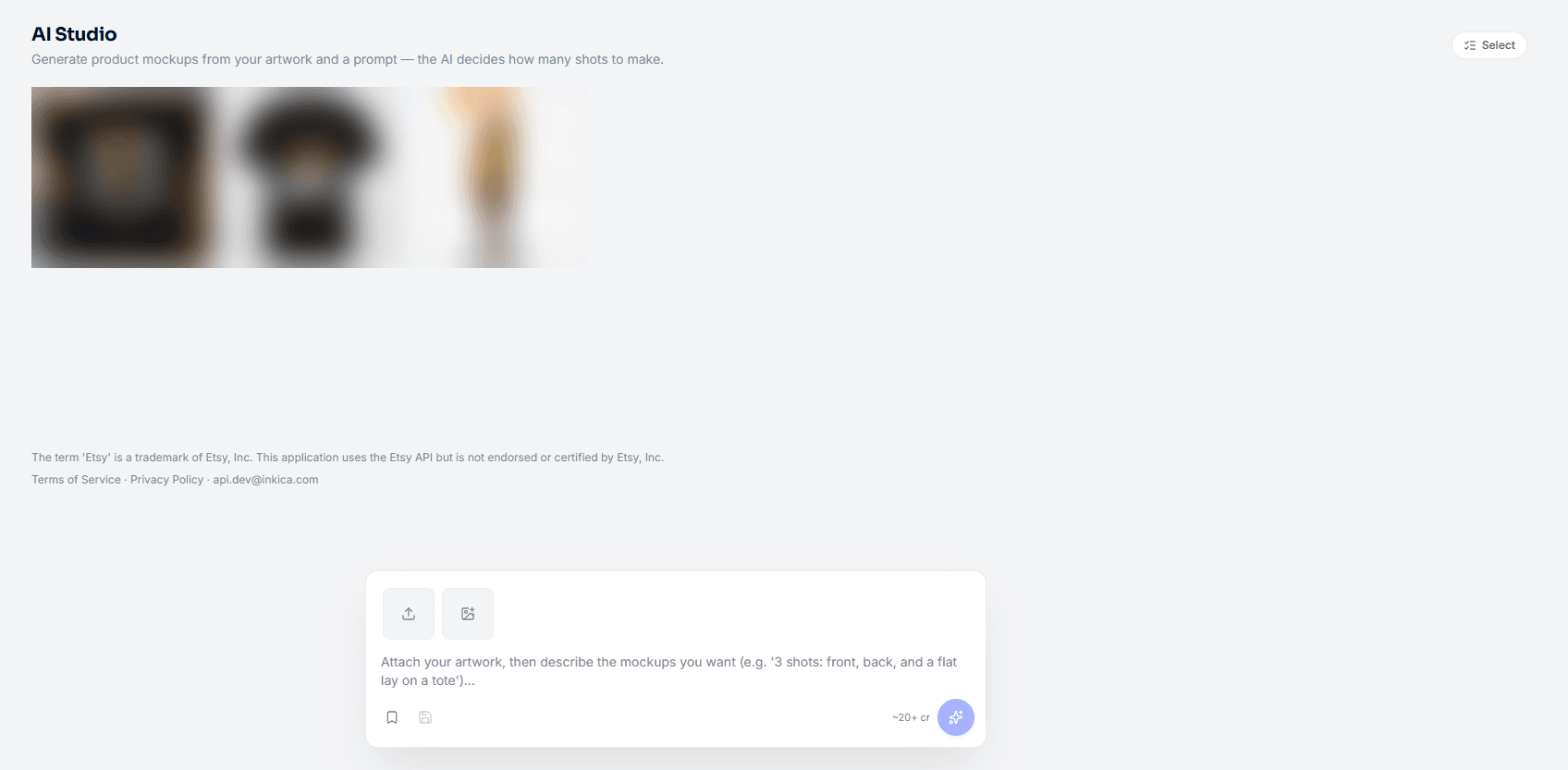
The default page when you click AI Studio. Generate mockup images from your design.
- Attach your artwork (the design to be printed) and, if you like, add reference images (the model, camera angle, or setting you want). The image marked ★ Artwork is the one that gets printed — hover over another image and click the star to switch.
- Describe what you want, for example “3 shots: front, back, and a flat lay on a tote”. The AI decides how many images to create from your description — there’s no field for choosing the number.
- Click Generate.
Redesign
Turn an existing design into new versions while keeping the original style.
- Attach the design you want to redo (required — until you attach one, you can’t type a description).
- Describe the change, for example “change the background to a cyberpunk sunset, keep the pose”.
- Optional settings (click More options if needed): Resolution, number of versions (Variants — leave it on Auto and the AI decides), Diversity (how different the new versions are from the original — drag the slider, and click the value to go back to Auto), Aspect ratio, 4K master canvas.
- Click Redesign.
Extract Print
There are 2 tabs:
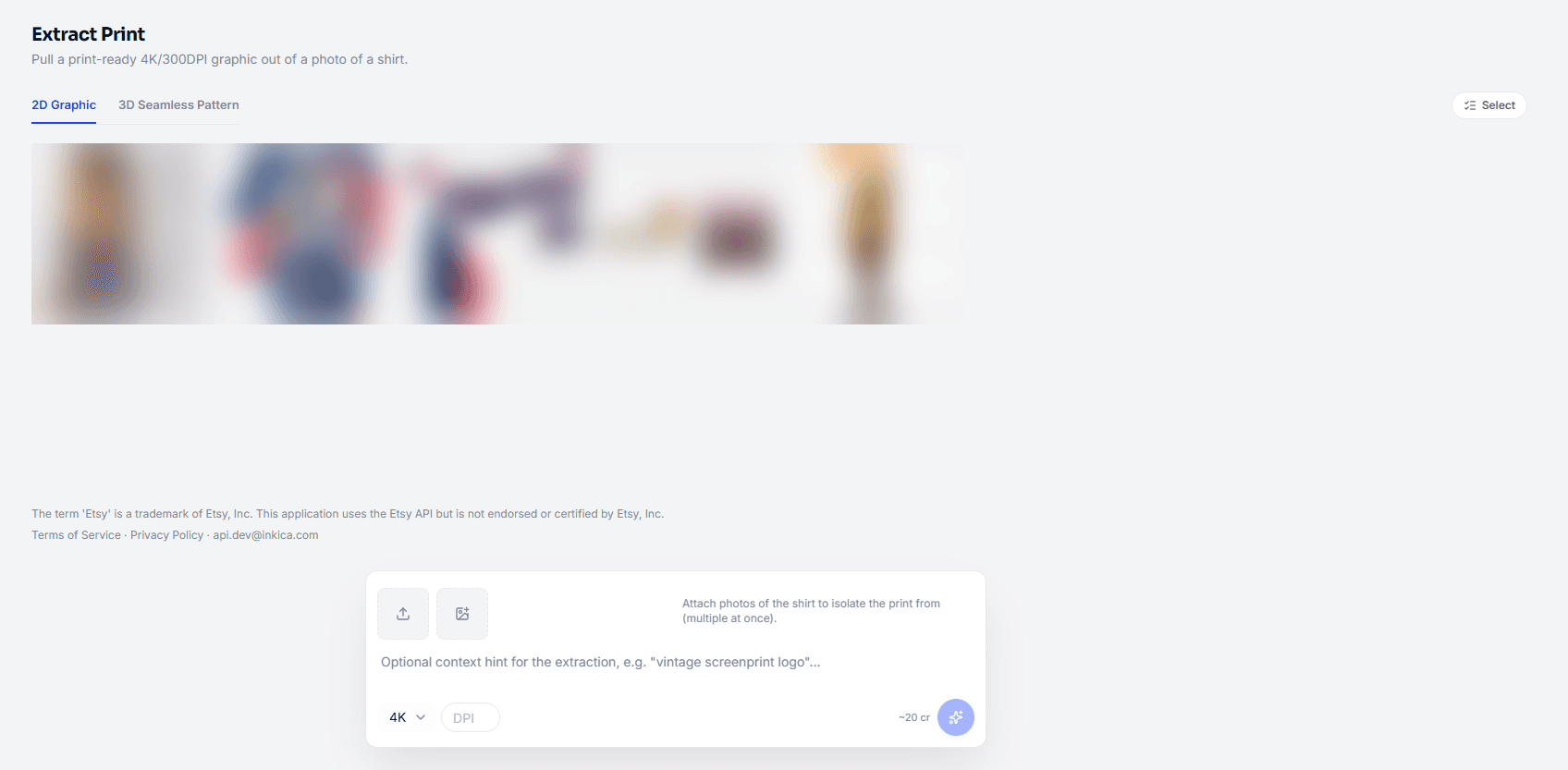
- 2D Graphic — extract 4K/300DPI print artwork from a photo of a shirt.
- 3D Seamless Pattern — rebuild a seamless repeating pattern (used for all-over-print) from a fabric photo.
How to use it: attach one or more images (each image runs as its own job), type a hint if you want (optional, for example “vintage screenprint logo”), choose Resolution (4K or 2K) and DPI (optional, from 72 to 600), then click Extract. Each job can take about a minute.
On some other screens there are also floating buttons for quick access without leaving the page: AI Extract (the Orders page, order details, shop details) and Open AI Studio (the Etsy/eBay listing creation form).
Working with results
Hover over a result image to see these buttons:
- Download — download the image.
- Add to Assets — save it to your image library.
- Copy image URL — copy the image link.
- Generate mockup from this — use this image as the artwork for a new Mockup job (available on Extract Print results).
- Remove — delete it from your history.
Click Select to pick several images at once, then download them, add them to Assets, or delete them in bulk.
Saved prompts
Go to AI Studio → Saved Prompts to save the prompts you use often so you don’t have to retype them. Each person can save up to 30 prompts.
- New prompt — enter the text and, optionally, give it a name (Label) to find it more easily.
- The Search prompts or labels box filters by text or name.
- Use — reuse that prompt in AI Studio. The ⋮ menu has Edit and Delete.
While typing a prompt on the image-generation pages, you can also open this list (Saved prompts) to pick one quickly, or use Save current prompt to save what you’re typing.
Credits
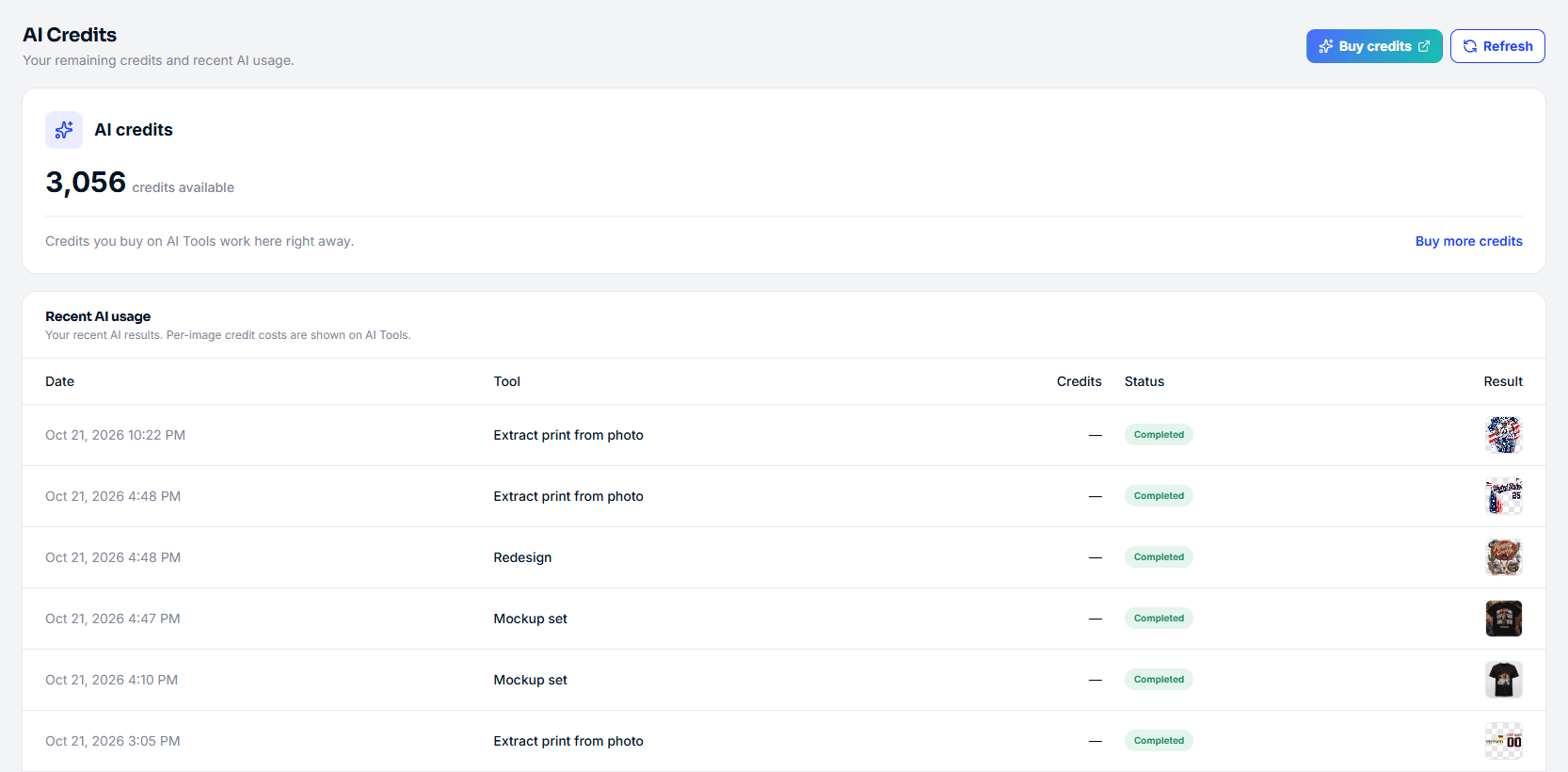
Each time you use a tool, it deducts from your account’s credit balance. Your remaining credits show in the top bar (for example 1408 AI credits) — click it to open the AI Credits page.
The AI Credits page shows you:
- Your remaining credits, with the Buy credits and Refresh buttons.
- Recent AI usage — your recent AI results: date, tool, status (Completed…) and the result image (click View image). The Credits column shows ”—” because the cost of each image is viewed on AI Tools.
Out of credits → the tool shows Out of AI credits with a View credits button. Buy more as described below and keep going right away.
Buy more credits
AI credits are sold on AI Tools (ai.inkica.com) — the service that runs the AI tools for Inkica — and are not deducted from your Inkica Wallet. The process is the same for every seller, including sellers connected through Shopify.
- On the AI Credits page, click Buy credits (or Buy more credits in the credits card).
- A new tab opens the AI Tools pricing page, already signed in to your own Inkica account. The Active Account line shows which account the credits will be added to — check it before you buy.
- Choose a pack and click Purchase, review your order, and click Proceed to Checkout.
- Pay by card on the Stripe page.
- Once payment is complete, AI Tools shows Payment Confirmed & Credits Added and adds the credits right away. Go back to Inkica and click Refresh (or reload the AI Credits page) to see your new balance.
The sign-in link from the Buy credits button works only once and expires after 60 seconds. If you see Login link expired, go back to Inkica and click Buy credits again.
Top-up packs (one-time purchase, credits never expire; prices may change — always check the price shown on the AI Tools page):
| Pack | Credits | Price |
|---|---|---|
| On-demand | 500 | $15 |
| Best value | 1,200 | $29 |
| Pro volume | 2,500 | $49 |
| Max bulk | 6,000 | $99 |
Besides the top-up packs, the AI Tools pricing page also has monthly plans (Starter, Pro, Enterprise).