20. Marketplace Mail
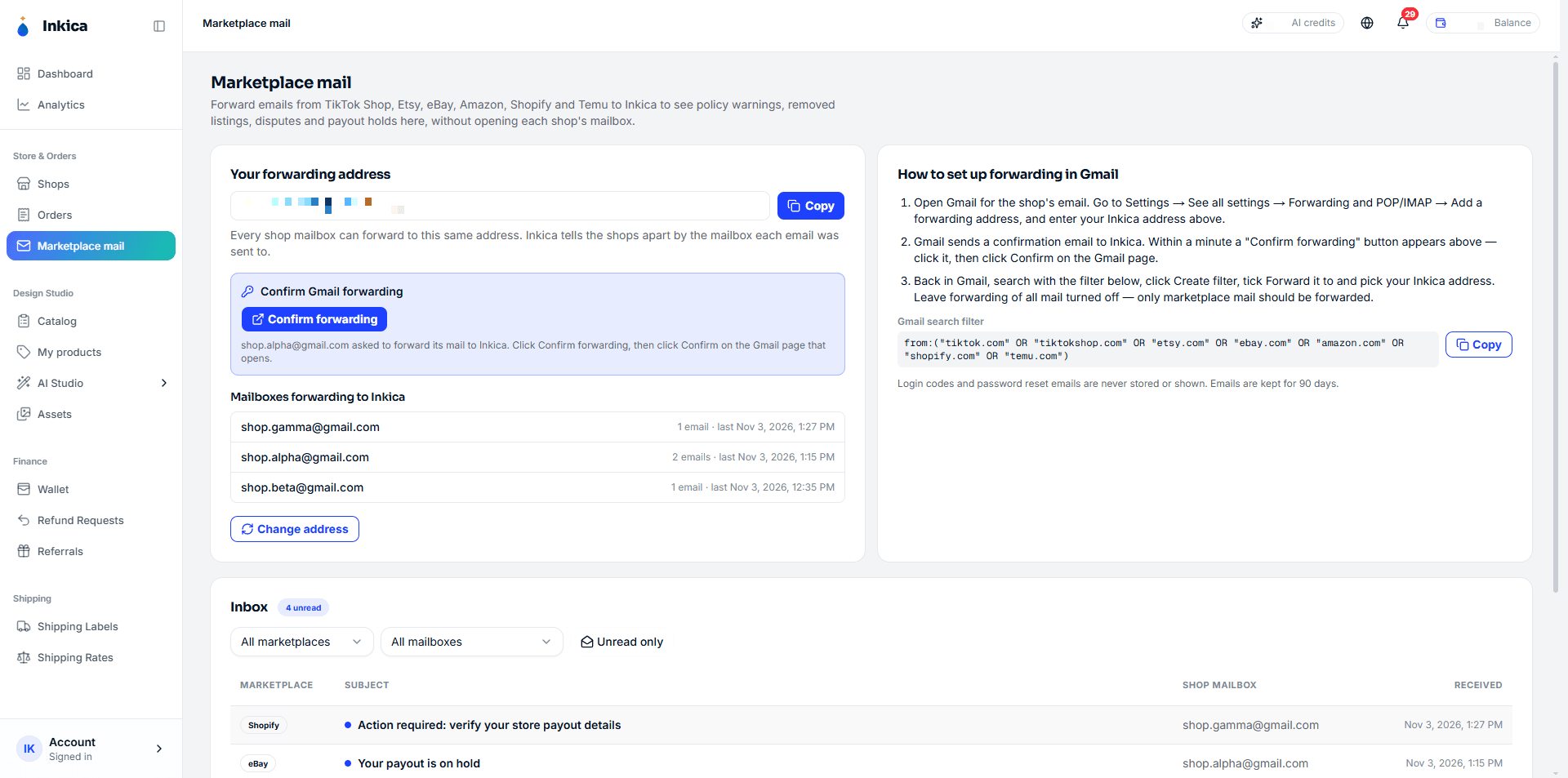
See your marketplaces’ notification emails (policy warnings, removed listings, disputes, payout holds…) right in Inkica, without opening each shop’s Gmail. You set up the shop’s Gmail to forward marketplace emails to your own Inkica address.
Works for emails from TikTok Shop, Etsy, eBay, Amazon, Shopify and Temu. Set up once per Gmail mailbox, about 5 minutes.
Get your forwarding address
- In the left menu, group Store & Orders, click Marketplace mail.
- Under Your forwarding address, click Copy.
All your shops forward to this same address. Inkica tells the shops apart by the mailbox each email was sent to.
Set up forwarding in Gmail
Do the steps below in the Gmail of each shop. Google asks you to verify it’s you twice (tap a number on the phone signed in to that Gmail), so keep the phone nearby.
Step 1 — Add the forwarding address
- Open the shop’s Gmail, click the gear icon → See all settings.
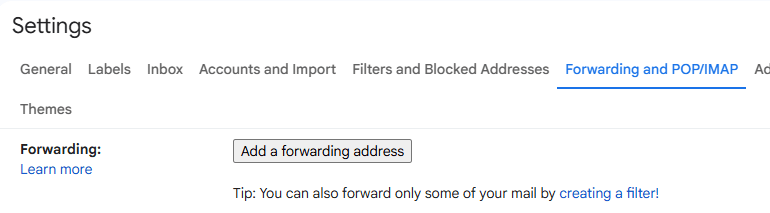
- Open the Forwarding and POP/IMAP tab and click Add a forwarding address.
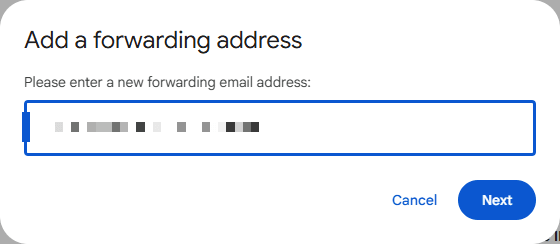
- Paste the Inkica address you copied and click Next.
- Verify on your phone when Google asks, then click Proceed and OK.

Step 2 — Confirm in Inkica
Gmail sends a confirmation email to Inkica. After about a minute, reload the Marketplace mail page:
- A Confirm Gmail forwarding box appears with the shop’s Gmail address.
- Click Confirm forwarding. Gmail’s page opens in a new tab.
- Click Confirm. Gmail shows Confirmation Success!

Step 3 — Create a filter that forwards only marketplace emails
Forward only marketplace emails — do not turn on forwarding for the whole mailbox.
-
In Inkica, under Gmail search filter, click Copy.
-
In Gmail, click the search options icon at the end of the search box.
-
In the From field, paste the part after
from:— starting from the opening bracket:("tiktok.com" OR "tiktokshop.com" OR "etsy.com" OR "ebay.com" OR "amazon.com" OR "shopify.com" OR "temu.com")Keep the quotation marks. Without them Gmail also forwards emails from banks, Google and other services.
-
Click Create filter.
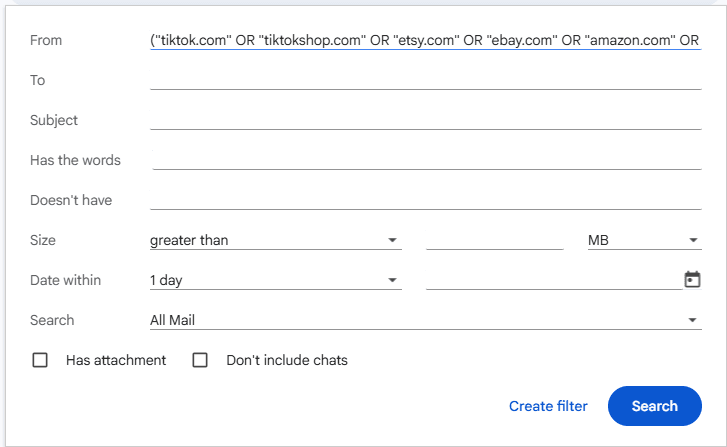
- Tick Forward it to, pick your Inkica address and click Create filter. Verify on your phone when Google asks.
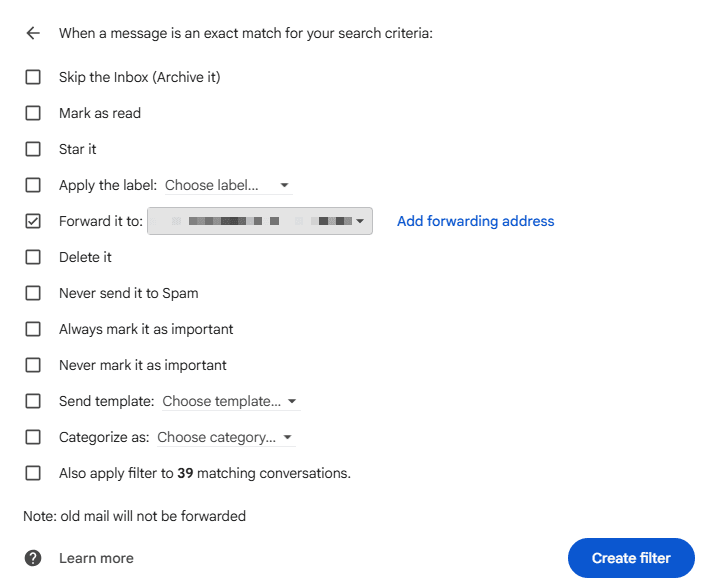
Done. Gmail forwards only new emails from now on — older emails already in the mailbox are not brought over.
Read the emails in Inkica
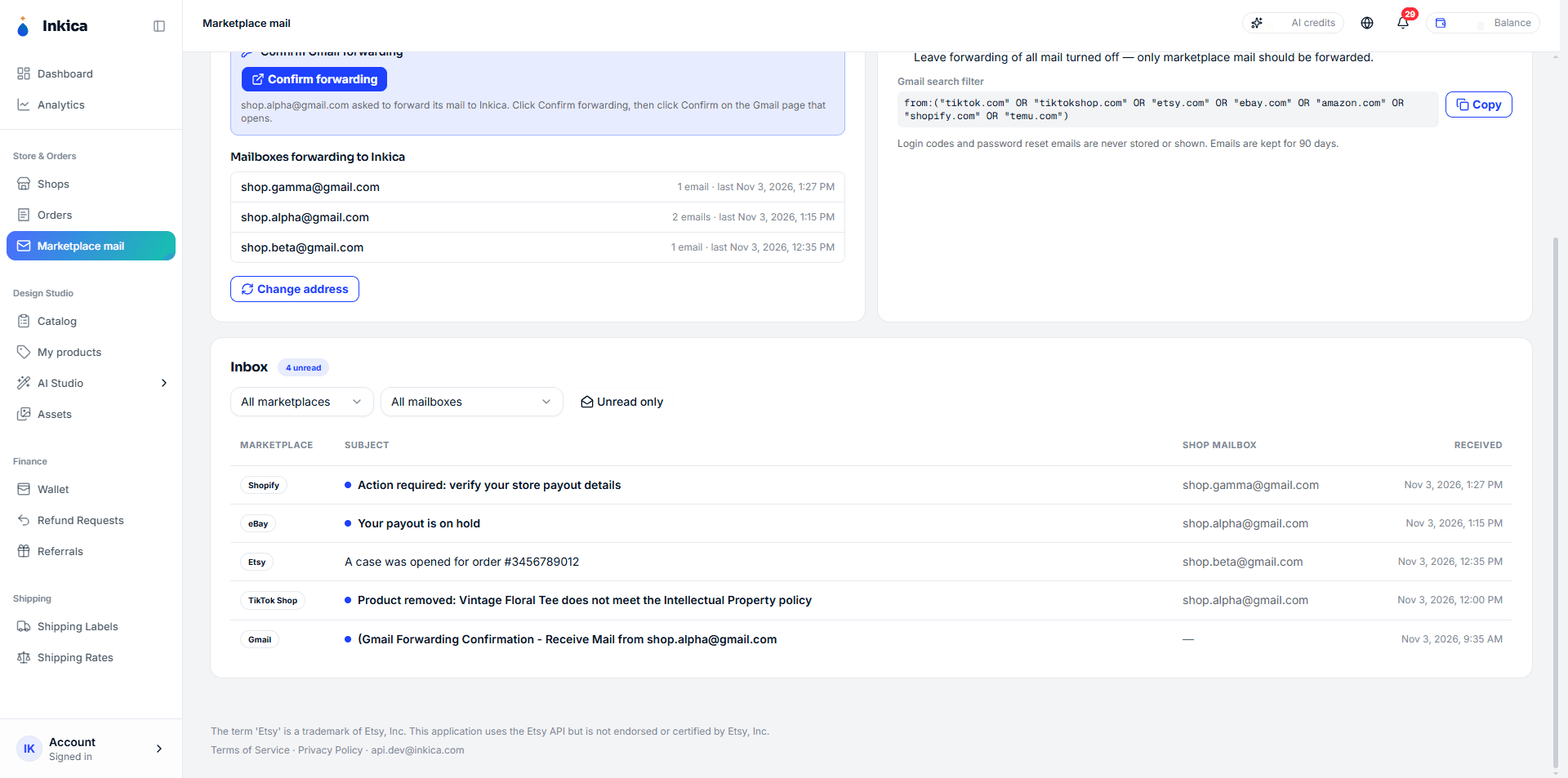
When a marketplace sends a new email, the shop’s Gmail appears under Mailboxes forwarding to Inkica, with the number of emails and the last one received.
In the Inbox:
- Filter by marketplace (All marketplaces), by shop mailbox (All mailboxes), or click Unread only.
- Unread emails have a blue dot and bold text. The Shop mailbox column shows which shop the email was sent to.
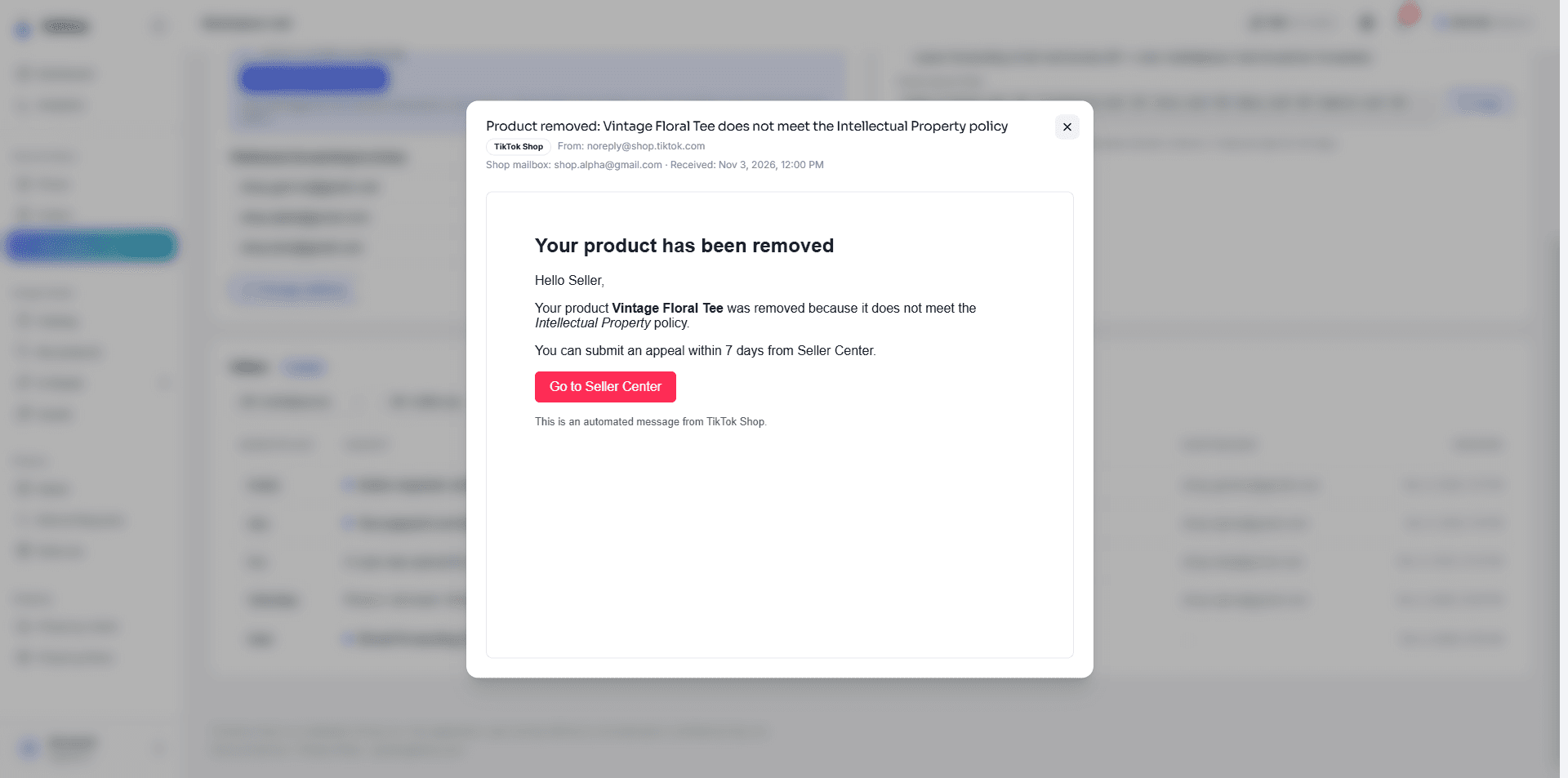
Click an email to open it. It looks the same as in Gmail. Buttons and links in the email (for example Go to Seller Center) open the marketplace’s page in a new tab. An opened email is marked as read.
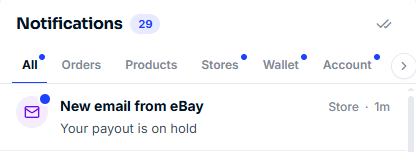
Each new email also shows a notification in the bell, Stores tab, as New email from + the marketplace (for example New email from eBay). Click it to open that email.
Emails that do not show in Inkica
- Login codes (OTP), verification codes, password change or recovery emails — Inkica drops them right away and never stores them. They stay in Gmail as usual.
- Emails not sent by a marketplace (personal Gmail, banks, Google…), even if forwarded to your address.
- Older emails that were in Gmail before you created the filter.
Emails shown in Inkica are kept for 90 days, then deleted automatically.
Change your forwarding address
If the address got out, click Change address → confirm. The old address stops receiving immediately. Redo Steps 1–3 in every Gmail mailbox with the new address.
Notes
- Anyone who can sign in to your Inkica account can read these emails. Don’t share your forwarding address.
- Company Gmail (Google Workspace): the admin may block forwarding outside the company. If you can’t add the address, ask your admin to allow it.
- These steps are written and tested for Gmail. For Outlook/Hotmail, contact Inkica before setting it up.
- To stop: in Gmail, delete the filter (Filters and Blocked Addresses) and remove the forwarding address (Forwarding and POP/IMAP tab).