17. Notifications
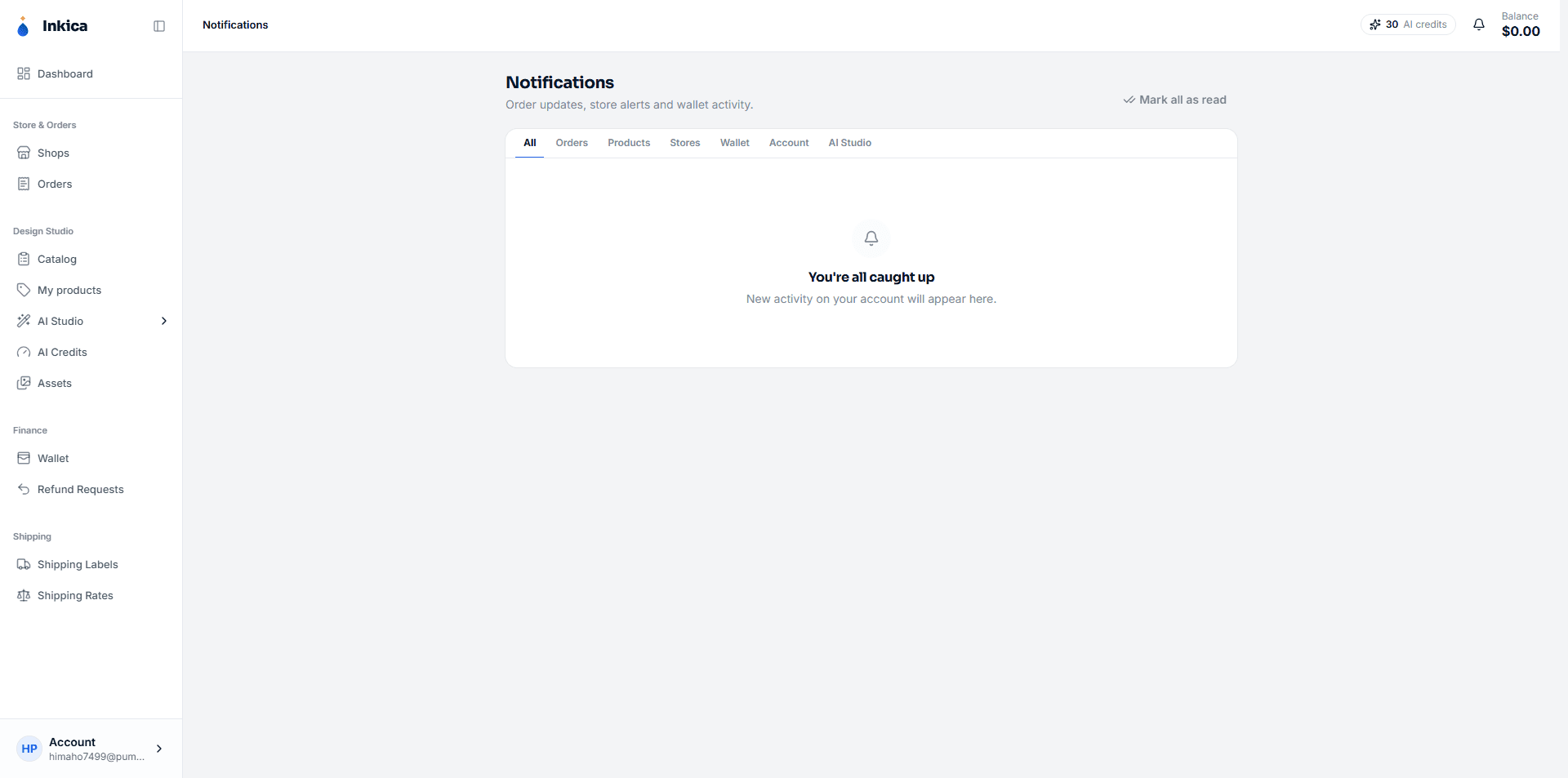
The notification bell in the top corner shows the latest updates (in real time, no need to refresh the page). To see the full history, open the Notifications page.
The kinds of notifications you’ll get
- Orders — a new order arrives, an order is sent to the factory successfully/unsuccessfully, an order is rejected.
- Products — listing status updates (currently mainly for TikTok Shop).
- Stores — a shop needs to be reconnected or its token has expired, messages/cases from eBay, return requests and shop health from TikTok Shop, new marketplace emails (see Marketplace mail).
- Wallet — your wallet is charged, a top-up succeeds or is rejected, a refund request is approved or rejected, a new seller signs up through your referral link, and a referral commission is credited.
- Account — a sign-in alert from a new device (with an email), and other account notices.
- AI Studio — results of AI jobs running in the background (Extract, Redesign, Mockup) appear the moment they finish if you have Inkica open, but they aren’t kept in your notification history.
- System — general announcements from Inkica to every seller (maintenance, new features, policy changes). See below.
System announcements from Inkica
When Inkica needs to tell every seller something (maintenance, new features, policy changes), the announcement shows in one of two ways:
- A strip under the top bar, on every page. The strip is one line — click the text or Details to read all of it (with the picture, if there is one). Click ✕ to hide it; it comes back if Inkica updates the announcement.
- A window in the middle of the screen that opens once when you come into Inkica — usually with a picture and a Learn more button to the related page. Click Maybe later or ✕ to close it; it doesn’t open again on that browser (unless Inkica updates it).
Either way it is kept in the notification bell, in the System tab, so you can read it again after closing it. The Notifications page shows the full text and picture.
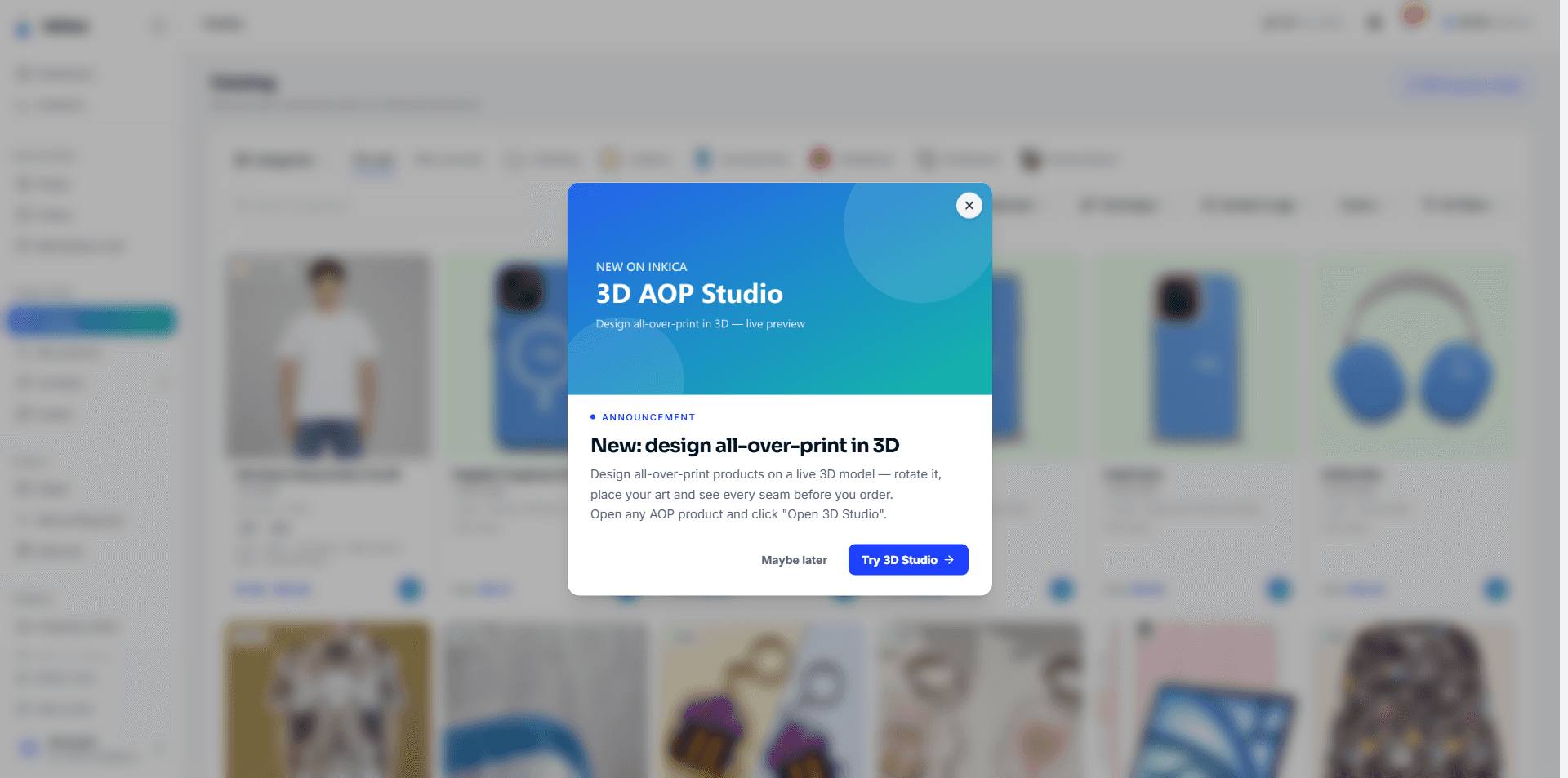
The text follows the language you use on Inkica when a translation exists, otherwise it is in English.
On the Notifications page
- Filter by type at the top, or view all.
- Filter only unread notifications.
- Click a notification to mark it as read (and go to the related page — for example, clicking a new-order notification opens that order directly).
- Mark all as read in one go.
- Delete a notification you don’t need to keep.
Last updated on