17. Notifications
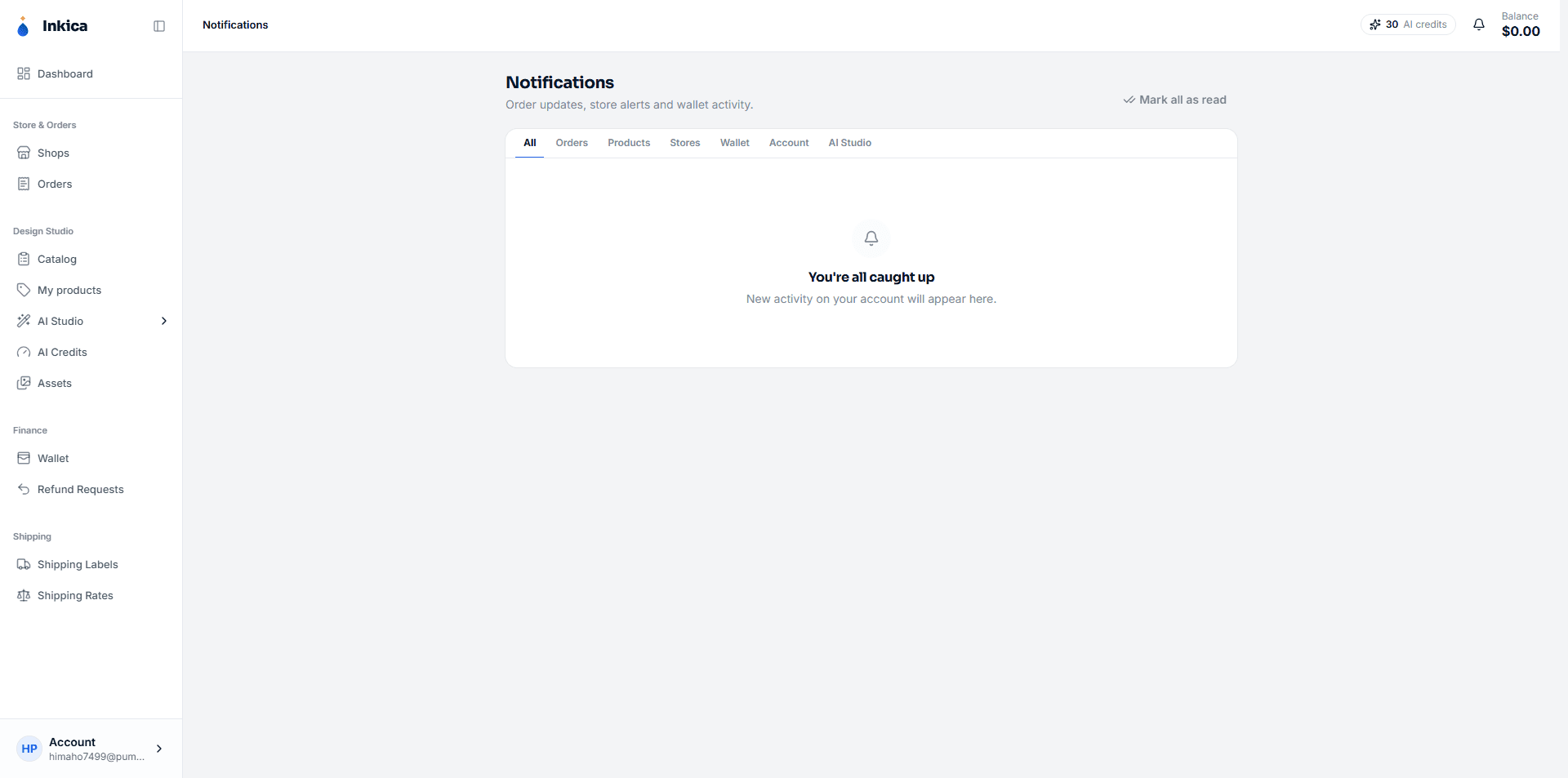
The notification bell in the top corner shows the latest updates (in real time, no need to refresh the page). To see the full history, open the Notifications page.
The kinds of notifications you’ll get
- Orders — a new order arrives, an order is sent to the factory successfully/unsuccessfully, an order is rejected.
- Products — listing status updates (currently mainly for TikTok Shop).
- Stores — a shop needs to be reconnected or its token has expired, messages/cases from eBay, return requests and shop health from TikTok Shop, new marketplace emails (see Marketplace mail).
- Wallet — your wallet is charged, a top-up succeeds or is rejected, a refund request is approved or rejected.
- Account — a sign-in alert from a new device (with an email), and other account notices.
- AI Studio — results of AI jobs running in the background (Extract, Redesign, Mockup) and notices about AI credits.
On the Notifications page
- Filter by type at the top, or view all.
- Filter only unread notifications.
- Click a notification to mark it as read (and go to the related page — for example, clicking a new-order notification opens that order directly).
- Mark all as read in one go.
- Delete a notification you don’t need to keep.
Last updated on