0. Sign Up & Sign In
Create an account
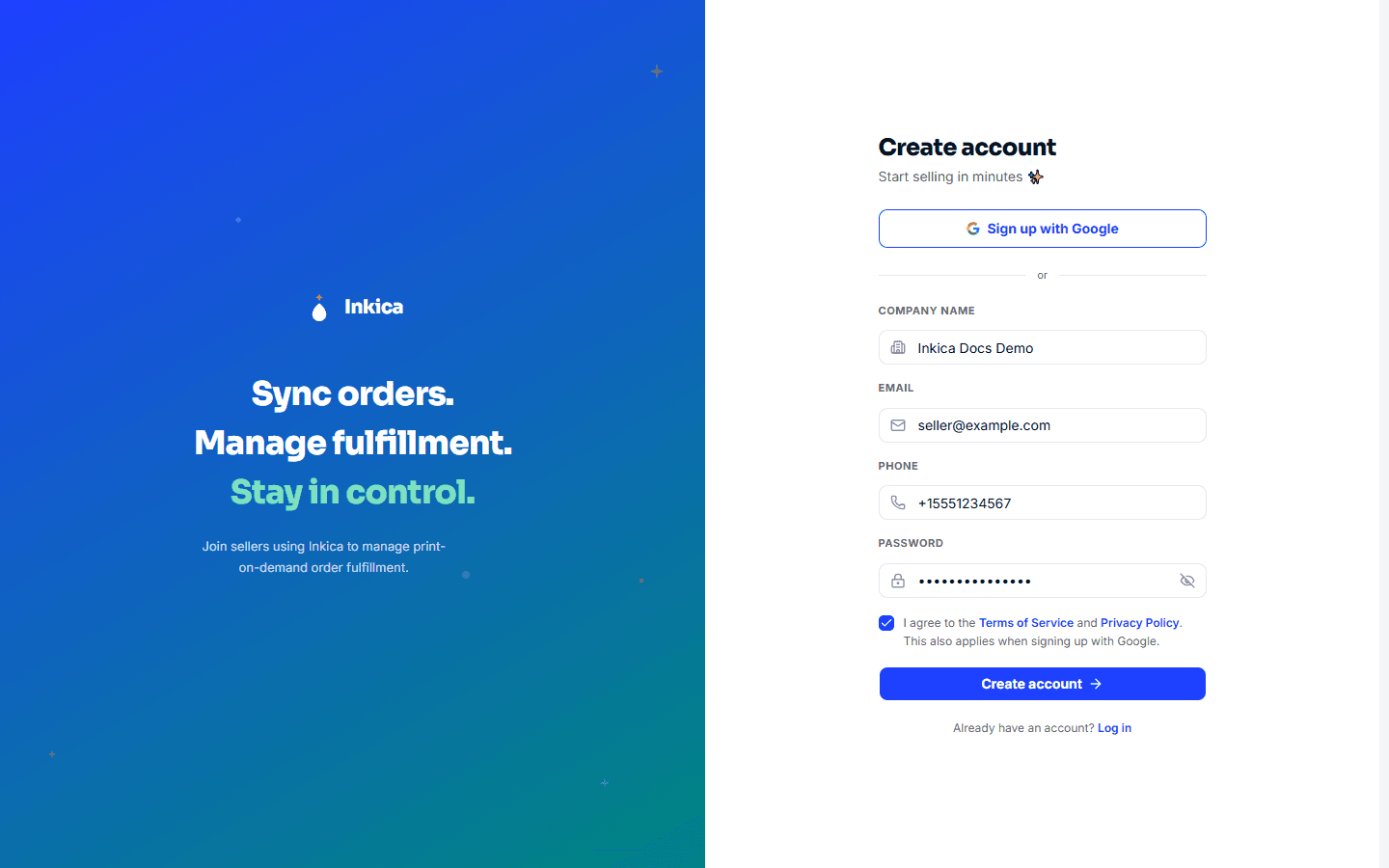
- Go to the Sign up page.
- Fill in Company name, Email, Phone, Password — or click Sign up with Google to sign up quickly with your Google account. The company name must be 5–255 characters; the phone number 10–15 digits (it may start with
+). - Tick I agree to the Terms of Service and Privacy Policy. This is required for both sign-up methods — until you tick it, neither Create account nor Sign up with Google will let you continue.
- Click Create account.
🌐 To change the interface language (English, 中文, Türkçe, Español), click the globe icon at the top — it is on the sign-up and sign-in pages as well as after you sign in.
After you sign up, the system sends a verification email to the address you registered. Open the email and click the verification link — your account is activated right away and you can sign in immediately. The link expires after 24 hours; if you can’t find the email (check your Spam folder too) or the link has expired, contact Inkica support to have the verification link sent again.
If you sign up with Google, your account is activated immediately — no email verification step is needed.
Sign in
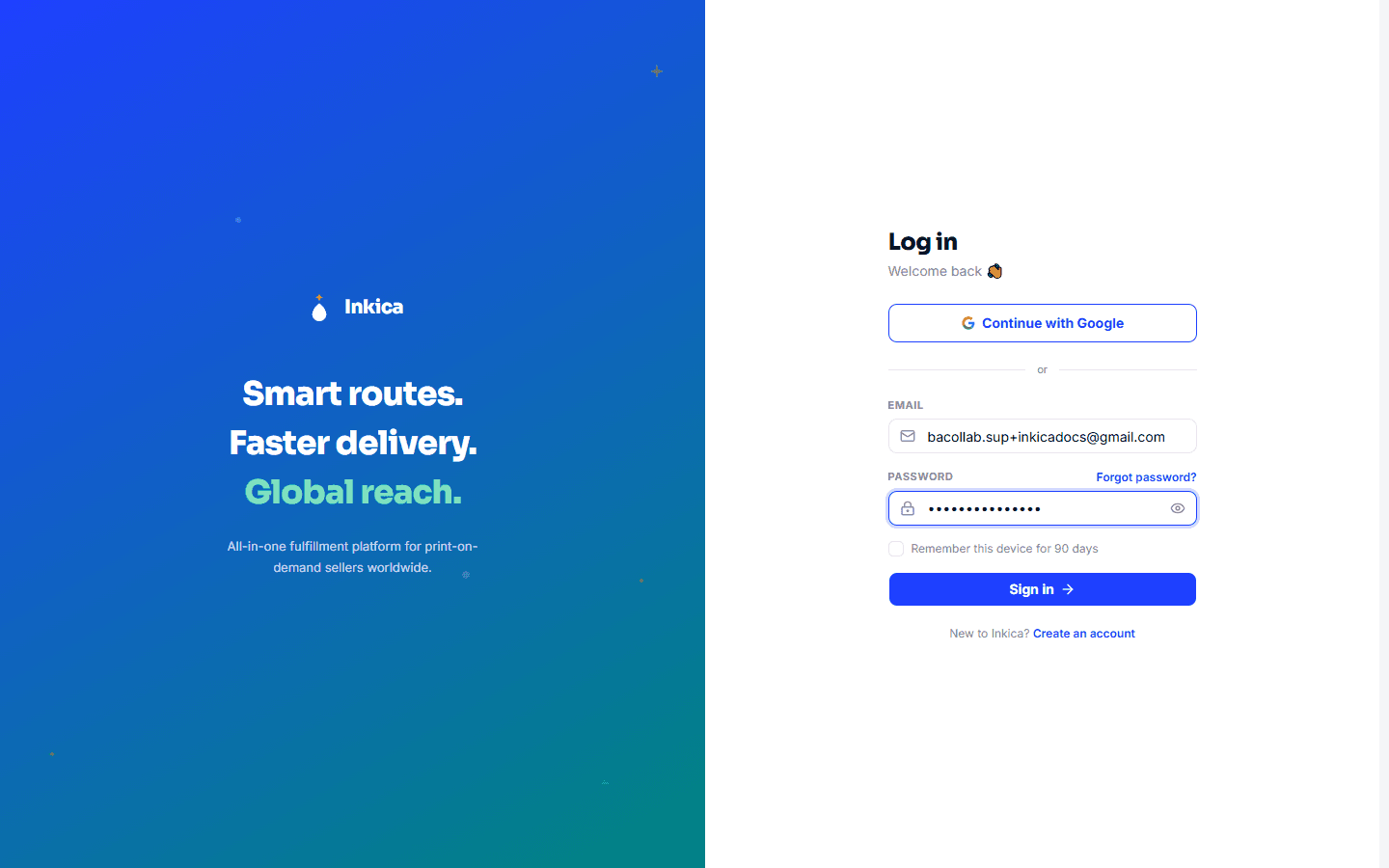
- Go to the Login page.
- Enter your Email + Password, or click Continue with Google.
- Tick Remember this device for 90 days if you want to stay signed in longer (90 days instead of the default 30 days).
- Click Sign in.
Agree to the terms
Accounts created before October 15, 2026 (or created through Google, or by installing the Shopify app) will see a Please review our updated terms box the next time they open Inkica. Tick I agree to the Terms of Service and Privacy Policy, then click Agree and continue to keep using Inkica — you only need to do this once. If you’d rather not agree, click Log out.
When the Terms of Service or Privacy Policy change significantly, this box will appear again so you can review and agree to the new version.
Forgot your password
- On the Login page, click Forgot password?.
- Enter your registered email → click Send reset link.
- Check your email and click the password reset link.
⚠️ Note: if you click the link in the email and get an error or can’t reach the new-password page, this is a known issue that’s waiting to be fixed — contact support to have your password reset manually instead of trying again and again.