1. Connect Your Shop
To have orders flow into Inkica automatically, you first need to connect your selling shop — do this once for each shop. Inkica supports: eBay, Etsy, TikTok Shop, Shopify, Amazon.
How to connect
- Go to Shops.
- Click Connect shop — the Connect a shop dialog opens.
- Choose the marketplace you want to connect (the Select platform step).
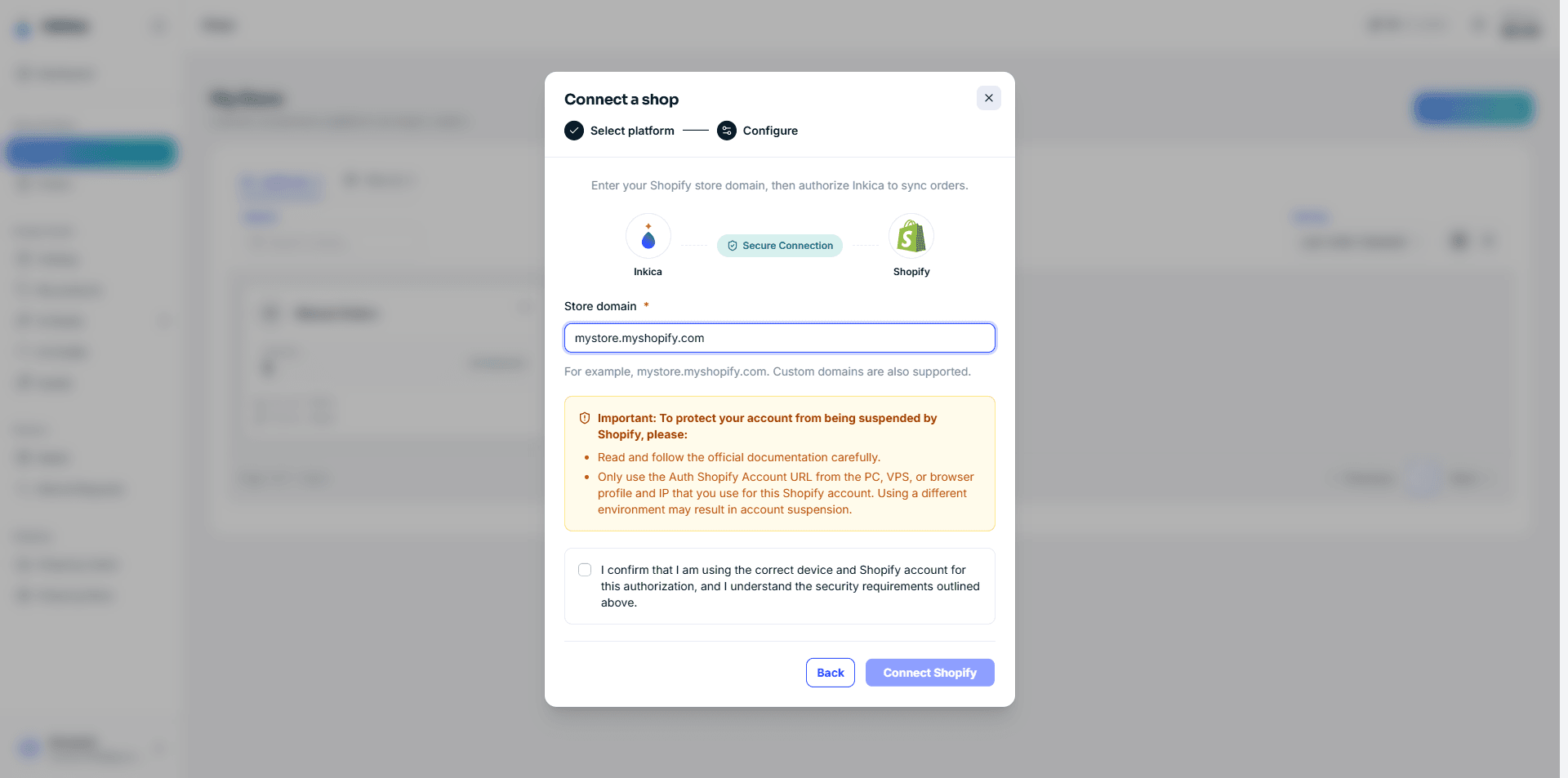
- Give the shop a name so you can tell them apart (if you have several shops) — for Shopify only, enter the store domain instead of a name (in the form
yourshop.myshopify.com). - Tick the box to confirm it’s the right account (for Etsy: I confirm I am authorizing the Etsy account that owns this shop), then click Connect — the system takes you to that marketplace’s sign-in page.
- Sign in to your marketplace account, then click Authorize to grant access.
- The marketplace sends you back to Inkica automatically — your shop is connected.
Right after connecting, the system automatically pulls in your orders from about the last 30 days. From then on, new orders on the marketplace flow into Inkica automatically — you don’t need to do anything else. Continue with Process orders.
Install Inkica from the Shopify App Store
With Shopify, you can also start from the Shopify side: find Inkica on the Shopify App Store and click Install (or open the Inkica app in your Shopify admin).
- Shopify takes you to Inkica — sign in (or sign up if you don’t have an account yet).
- Inkica opens the Shopify connection step automatically with the store domain pre-filled — tick the confirmation and click Connect Shopify.
- Shopify sends you back to Inkica — your shop is connected.
If that store was already connected to your Inkica account before, Inkica opens the shop’s details page directly (or reconnects it automatically if the shop lost its connection) — it won’t create a duplicate shop.
If you just signed up for a new account during installation, after you confirm your email and sign in, reopen the Inkica app from your Shopify admin (Apps → Inkica) to finish connecting.
Each marketplace also has a few features of its own (messaging buyers, managing listings, promotions…) right in the shop details: eBay · Etsy · TikTok Shop · Shopify · Amazon.
The Integrations page gives a quick list of which marketplaces Inkica already supports and which are coming soon (currently Walmart and SHEIN are “Coming Soon”) — it’s for reference only, not where you manage your own connected shops (that’s still in Shops).
A few notes
- Reconnecting an existing shop: make sure you sign in with the same marketplace account as the original. If you pick a different account by mistake, the system rejects it — this is to avoid mixing order history between two different accounts. To switch to a different marketplace account entirely, create a new shop instead of using reconnect.
- Disconnecting: on the Shops page, open that shop’s action menu (the ⋯ button on the shop row) → Disconnect. Existing orders stay in the system; Inkica just stops pulling new ones. This menu also has Rename, Archive (put the shop away; you can Unarchive it) and Delete.
- An Etsy shop has two connections: Orders · ShipStation (required — brings your Etsy orders into Inkica and sends tracking back to Etsy) and Listings · Etsy app (optional — manage listings from Inkica). For Etsy, step 4 asks for the Etsy shop link — your shop’s link on Etsy (for example
https://www.etsy.com/shop/YourShop). Inkica uses it to bring in that shop’s orders, so the shop’s name in Inkica can be anything. The button in step 5 is Create shop and you are not sent to Etsy straight away: the Inkica team links ShipStation for you — contact us once the shop is created; when its first order arrives, Orders shows Linked (orders then arrive in about 10–20 minutes). Until ShipStation is linked, you can’t send that shop’s orders to production. Connect Etsy app is only needed to create or edit listings and see reviews from Inkica.