8. Account & Security
View your account information
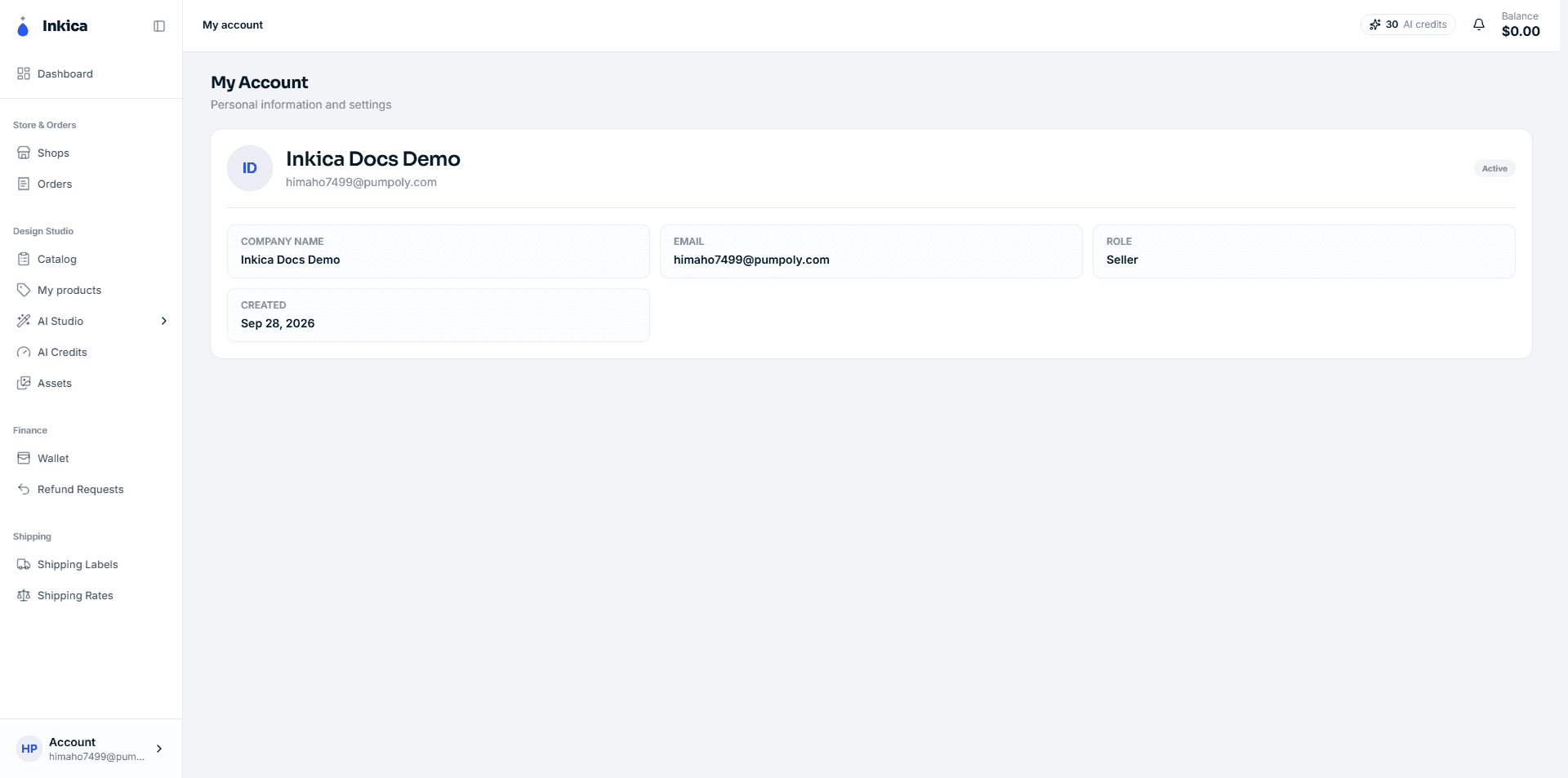
Go to My Account to see: company name, email, role, and the date your account was created.
Edit your profile & change your password
Go to Settings (different from the My Account page, which is view-only) to:
Edit your profile — change your company name and phone number (your email can’t be changed here). The phone number only accepts digits and the characters commonly used in phone numbers (+, spaces, -, ., parentheses) — typing letters or other characters gives an error.
Change your password — enter your current password, then the new password twice. The new password must:
- Be at least 8 characters long.
- Contain no spaces and no accented characters (such as Vietnamese diacritics or other accented letters) — for example
MậtKhẩu123is rejected; type it without accents, likeMatKhau123.
⚠️ After you change your password, the system signs you out of every device (including the one you’re using) — you need to sign in again with the new password. If your account signs in with Google and has never had a password set, this section won’t ask for the current password — just set a new one and you’re done (you’re also signed out after setting it).
Forgot your password
On the Login page, click Forgot password? → enter the email you registered with → the system emails you a link to reset your password.
Language
Click the globe icon in the top corner to change the interface language (English, 中文, Türkçe, Español). The language you choose is also saved to your account and used for the emails Inkica sends you.
Manage signed-in devices
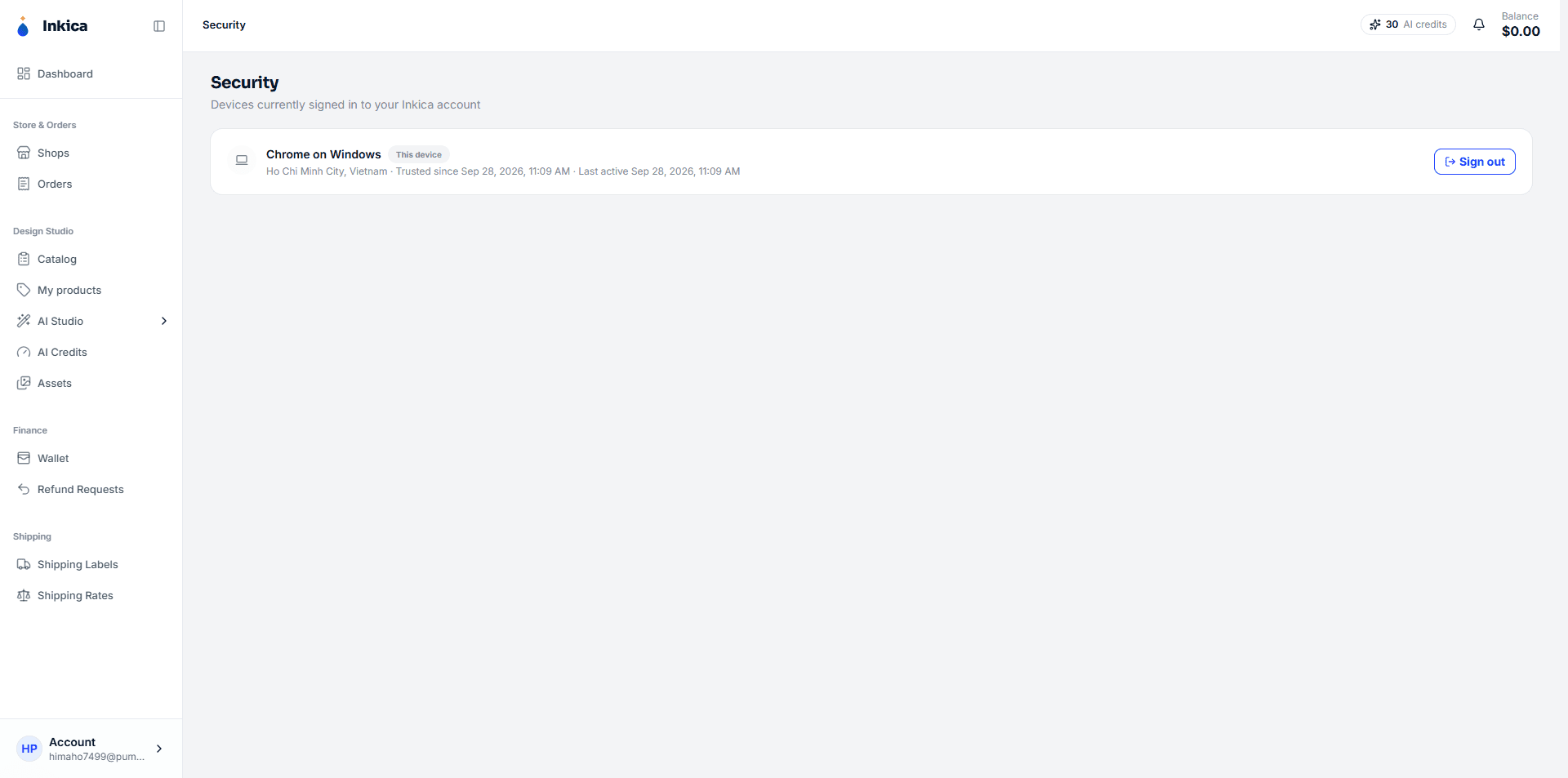
Go to Security to see the list of devices signed in to your account — each row shows the device name, location and last sign-in; the device you’re using is marked This device, and devices where you chose to be remembered at sign-in show Remembered with the date they were trusted (Trusted since).
- Sign out one device: click Sign out on that device’s row.
- Sign out every other device (keeping the one you’re using): click Sign out all other devices.
🔔 When someone signs in from a device that has never been used before, you receive an email and a New sign-in notification in the Account group of the notification bell — if it looks unfamiliar, sign that device out and change your password right away.
Use this when you suspect your account was signed in from an unfamiliar place, or right after you’ve changed your password.