9. eBay-Specific Features
◀ Contents · Already connected your eBay shop?
Go to Shops → choose your eBay shop to see the tabs below. The first 4 tabs (Details, Orders, Stats, Mappings) are the same on every marketplace — view shop info, orders, sales figures, and set up in advance which SKU matches which product (so new orders match automatically). The tabs specific to eBay:
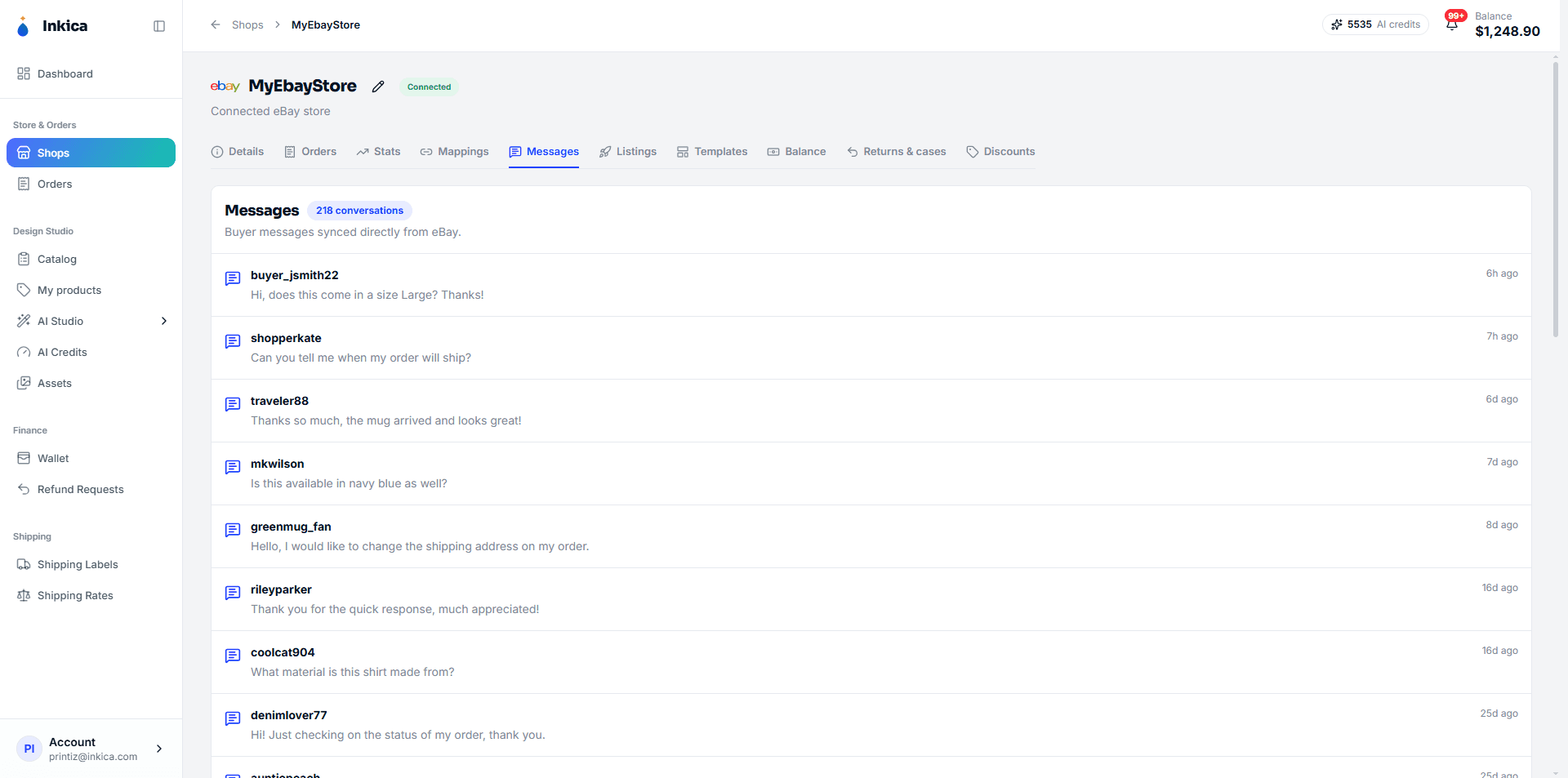
Messages
Message buyers directly inside Inkica — no need to open eBay separately. View conversations, reply (with images if needed), or start a new conversation. Unread messages show a red number right on the tab.
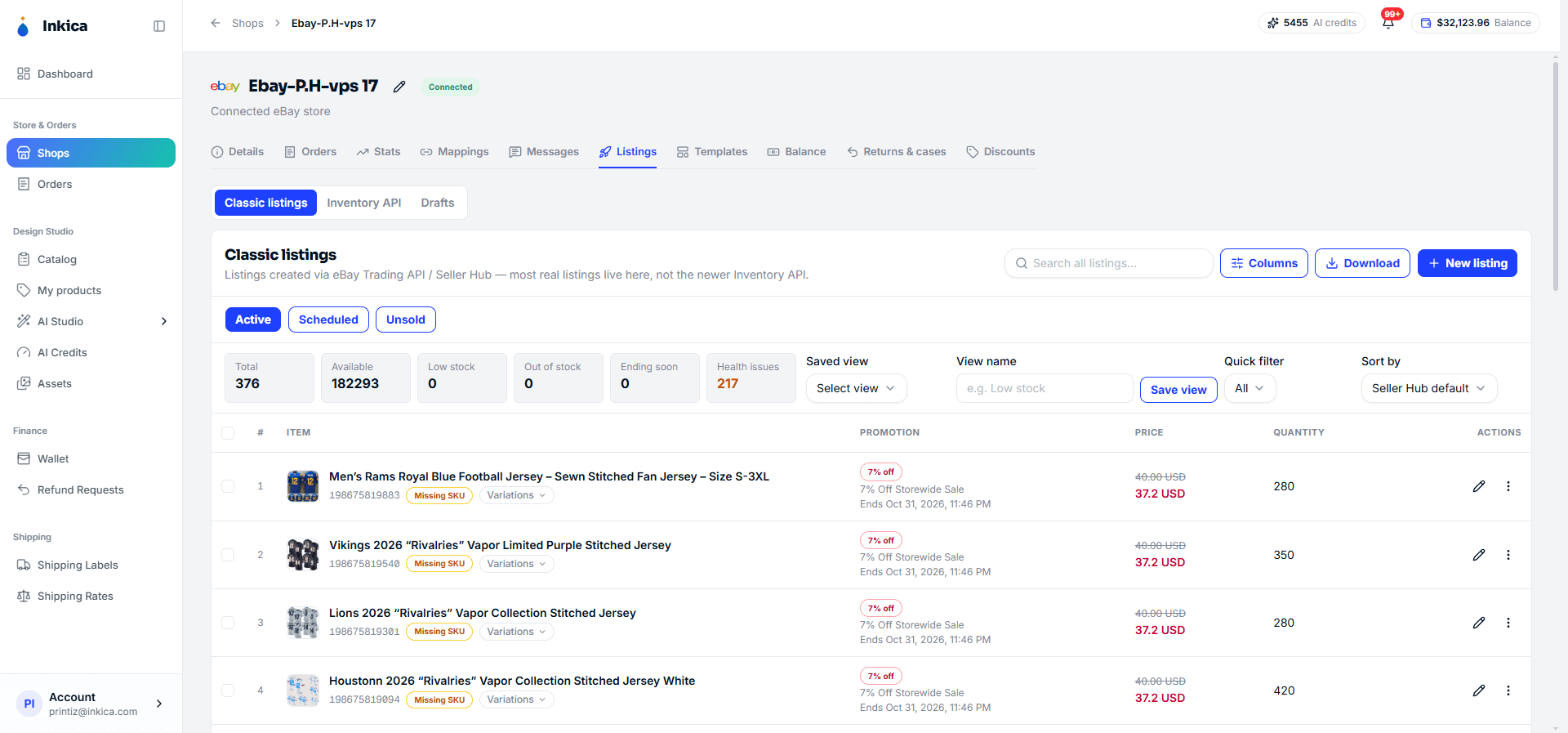
Listings
Manage your listings on eBay. There are 3 modes, which you switch with the buttons at the top of the page:
- Classic listings — listings created the old way (Trading API/Seller Hub); most eBay shops still work this way. View/edit/end/relist directly — this is the mode you’ll use most.
- Inventory API — eBay’s newer listing system, completely separate (it doesn’t share data with Classic). It only matters if your shop has moved to this system on eBay — if you’re not sure, you’re almost certainly using Classic.
- Drafts — Inkica’s own work-in-progress drafts (not eBay’s Draft), saved automatically while you fill in the create/edit listing form so you can come back later. There are only 2 things you can do: reopen to continue, or delete.
💡 The fastest way to list a new product on eBay: go to My Products, choose a product you’ve created → List to marketplaces → choose eBay.
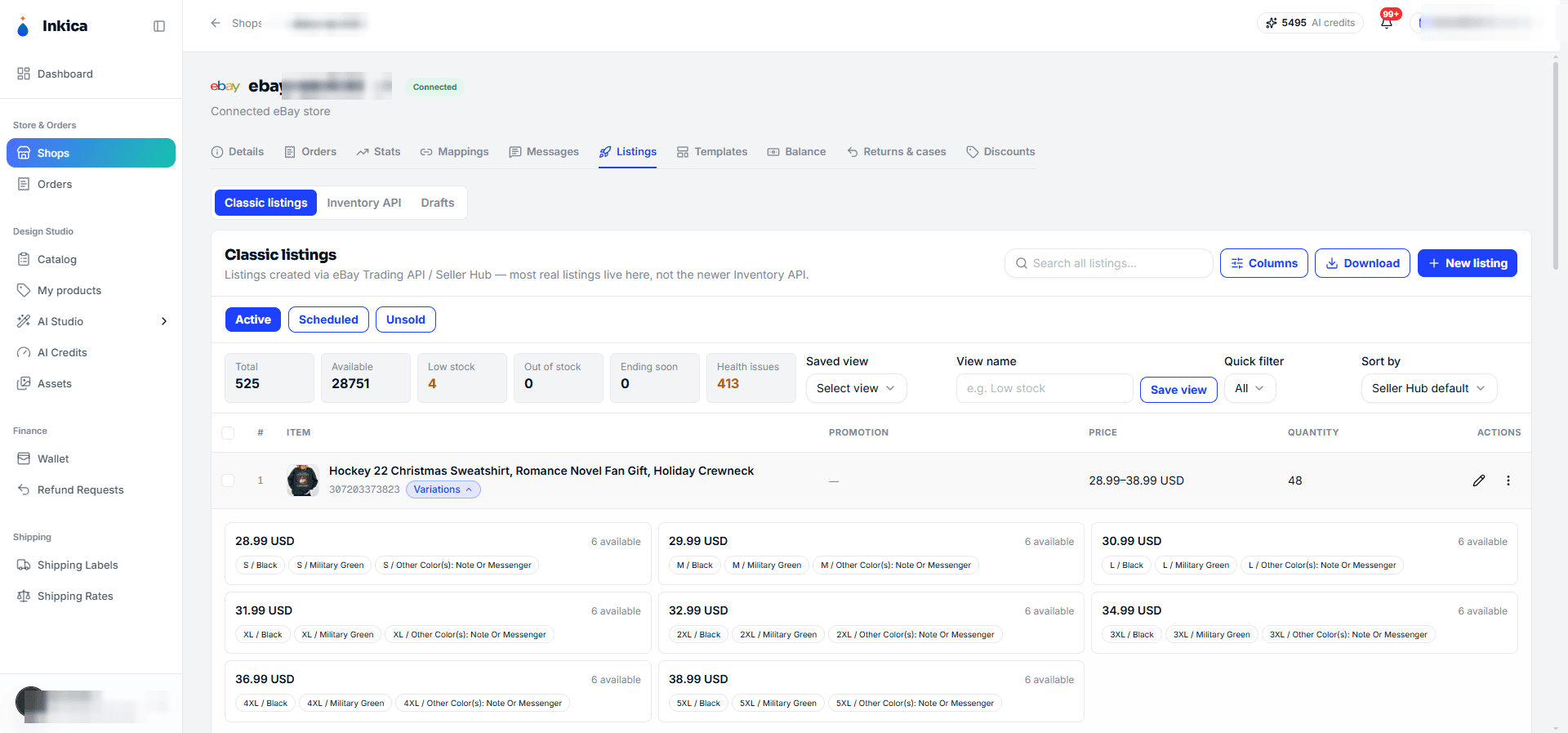
A listing that sells several sizes/colors is tagged Variations — click it to expand and see the price and stock of each variant (size × color) right in the table, without opening each one separately.
Search, filter and bulk actions (Classic listings)
The Classic listings table lets you search/filter across your entire catalog (not just one page), with a quick stats bar (total, in stock, low stock, out of stock, ending soon…). You can save the filters and columns you’re using as a Saved view to come back to quickly next time.
Tick several rows to act on them in bulk — depending on the listing status:
- Active: edit quantity, edit title (add a prefix/suffix or replace it entirely), edit item specifics, edit the 3 policies (shipping/payment/returns), edit price, edit category, duplicate, end listing — and 2 easy-to-miss actions that have no big button: create a discount for the selected listings, and add them to an existing discount.
- Scheduled: change the schedule, cancel the schedule.
- Out of stock / ended (Unsold): relist (you can adjust the price/quantity at the moment you relist).
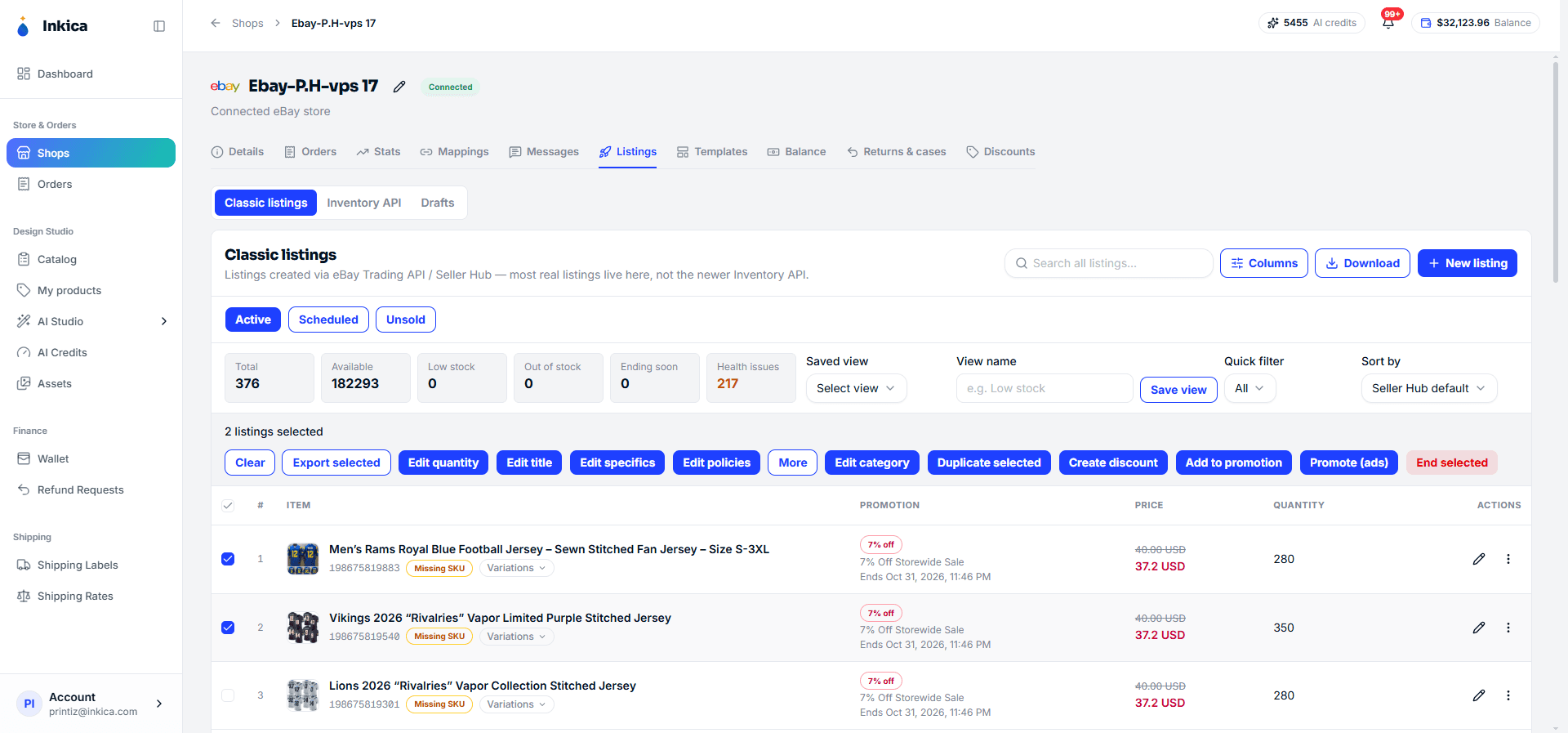
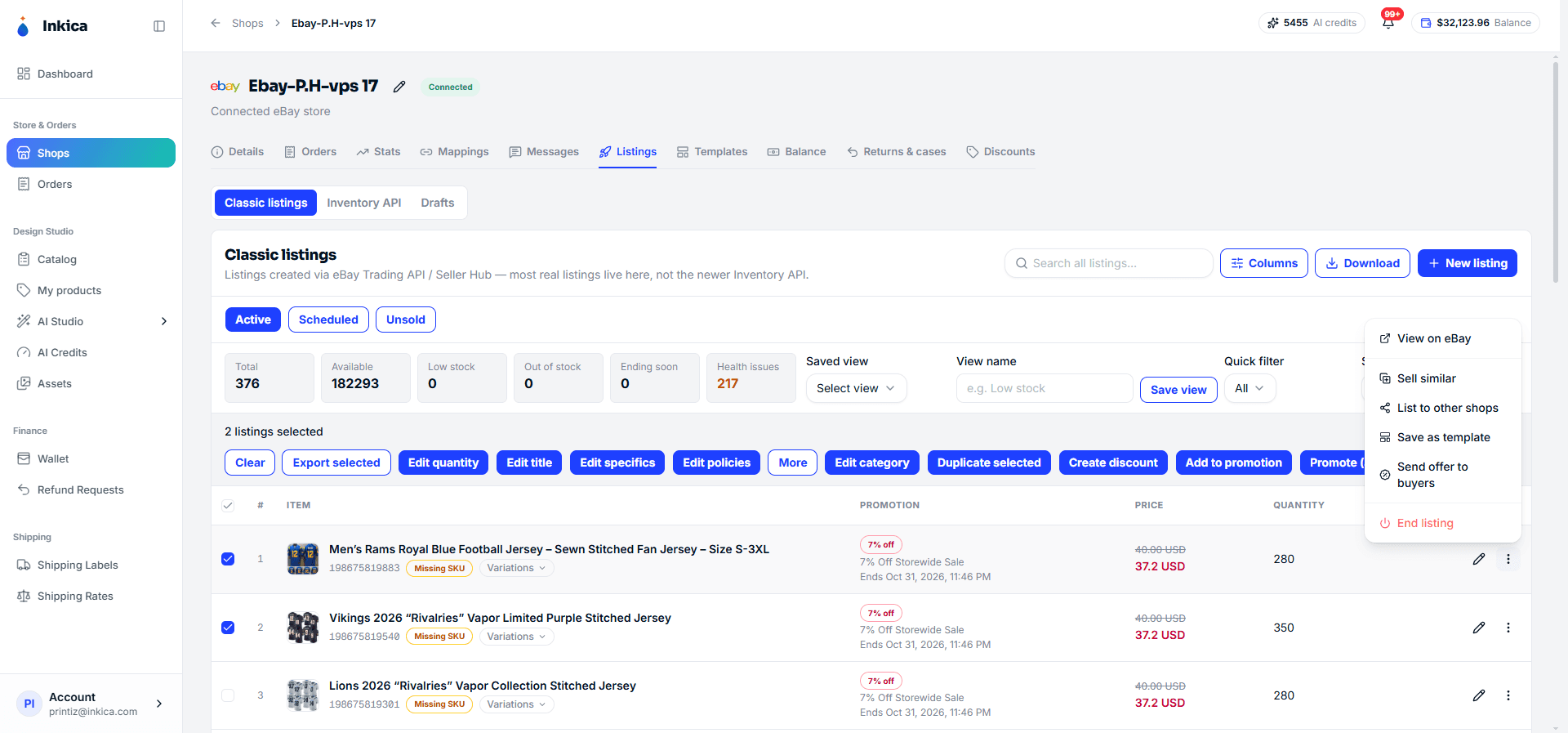
Each row also has its own ⋮ menu for actions that aren’t in the bulk actions:
- Sell similar — create a new listing based on this one, without touching the original.
- List to other shops — copy this listing as-is to another of your eBay shops (you need to choose the shipping/payment/return policies again for the target shop).
- Save as template — save it as a template to reuse (see the Templates section below).
- Send offer to buyers — see “Send offers to interested buyers” below.
A green “Interested buyers” badge appears automatically on any row that has buyers watching it or who added it to their cart without buying — exactly when you should consider sending them an offer.
Paid advertising (Promoted Listings)
Select one or more active listings → the Promote (ads) button on the bulk action bar. You can add them to an existing campaign or create a new one, then set the Ad rate (% commission, 2–100%). eBay only charges this fee when an order actually comes from the ad (cost-per-sale) — it doesn’t charge per view or per click.
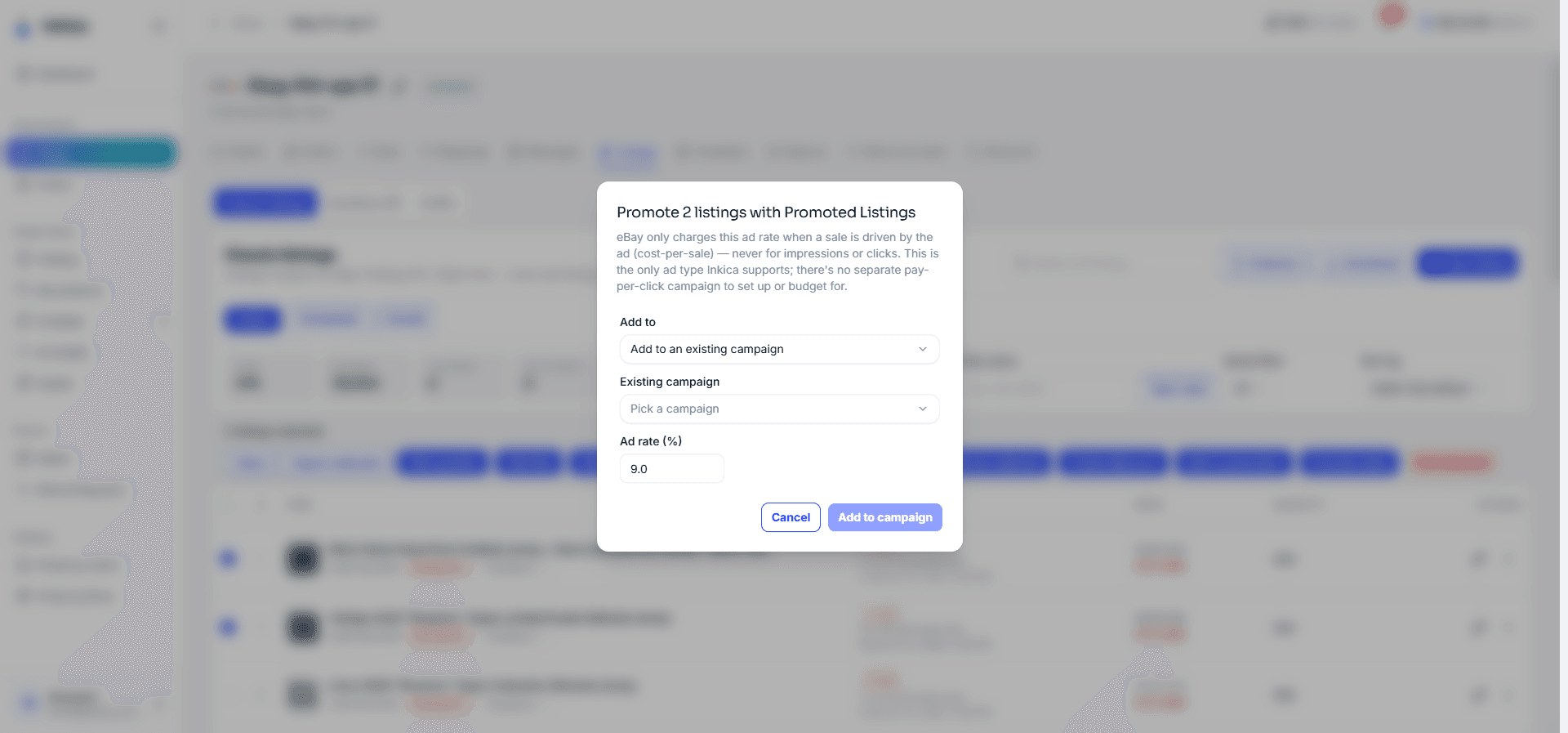
⚠️ Inkica currently only helps you create campaigns and add listings to them; you can’t yet see ad performance reports (impressions, clicks, cost…). To see reports, go straight to Seller Hub → Advertising on eBay.
Send offers to interested buyers (Negotiation)
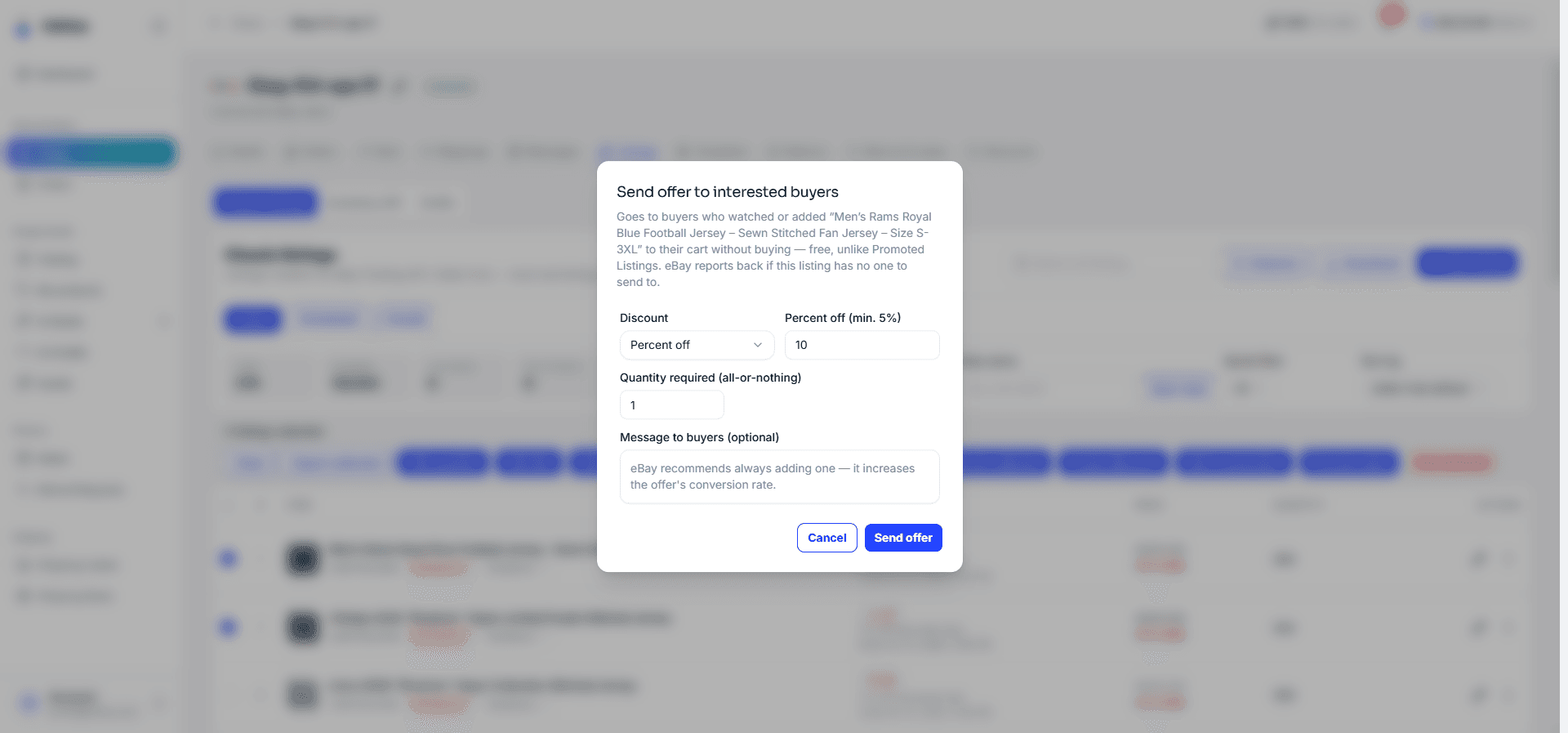
For a listing that has buyers watching it or who left it in their cart (the “Interested buyers” badge), open the ⋮ menu → Send offer to buyers to send a private, free offer — very different from the paid ads above. Choose a percentage discount (minimum 5%) or set a fixed price, the required purchase quantity (all-or-nothing), and optionally add a message to the buyer. You can only send to 1 listing at a time — that’s an eBay limit, not an Inkica one.
Shipping, payment and return policies (Business Policies)
Inkica doesn’t have a separate page for these 3 policies — you choose/edit them right where you need them (when creating/editing a listing, bulk editing, List to other shops…), through a dropdown with a ⋮ menu next to it:
- Shipping and Payment — view, edit, or create new ones right in Inkica.
- Return — view and choose only; to create or edit a return policy, you still need to do it on eBay Seller Hub.
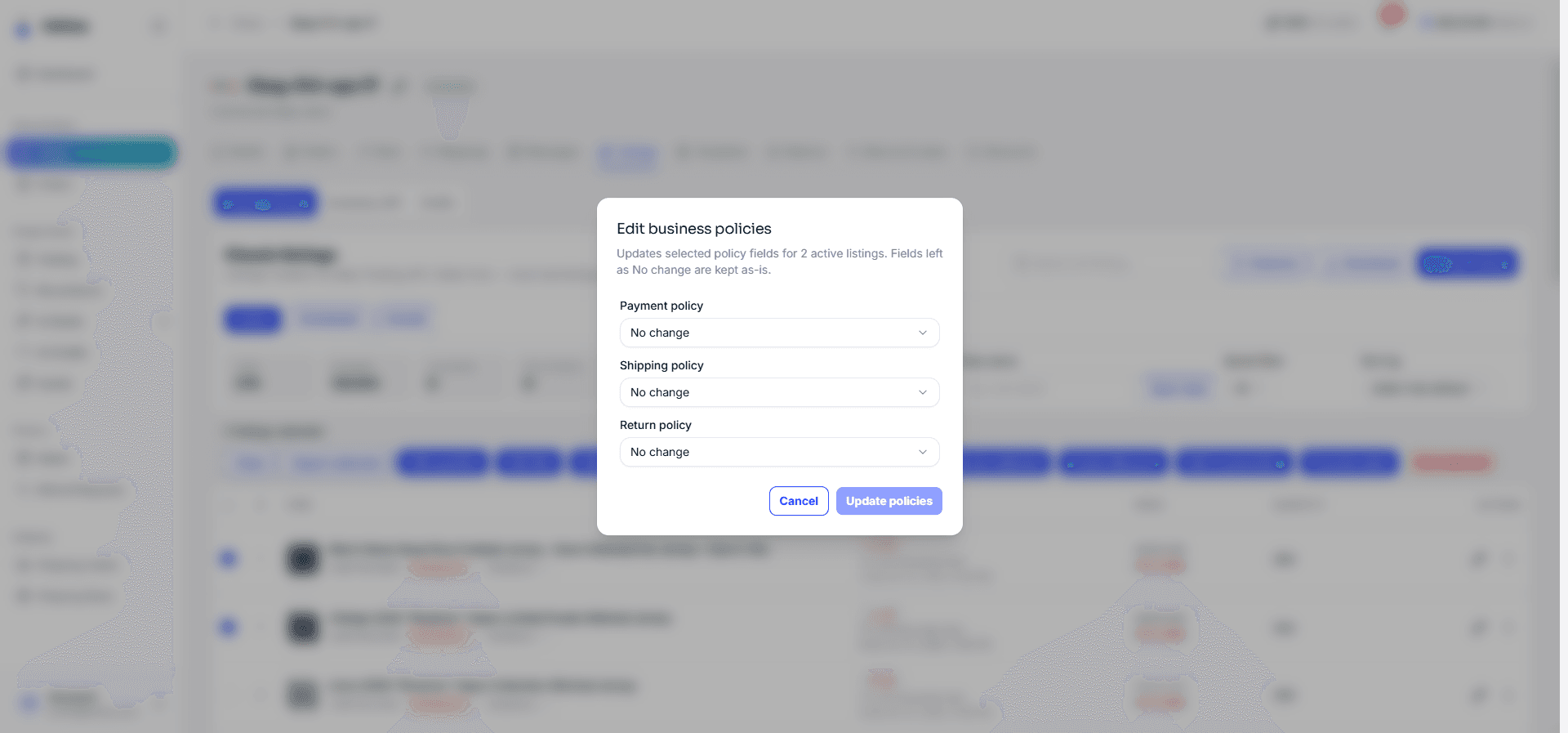
If the dropdown says it can’t load the policies, it’s usually because the shop needs to be reconnected — follow the Reconnect eBay button that appears right there.
Warning when eBay removes a listing
If eBay removes one of your listings for a policy violation (for example reported by a copyright owner), Inkica shows a red banner at the top of the Listings tab — with the exact reason eBay gave and a button to handle it directly on eBay Seller Hub (Inkica can’t remove or fix the violation itself; only eBay can).
⚠️ Note: this warning can only catch listings that Inkica saw still on sale before they were removed. If a listing was removed before you connected the shop, or before Inkica had a chance to sync, the banner won’t appear — you should still check eBay Seller Hub yourself now and then to make sure you don’t miss anything.
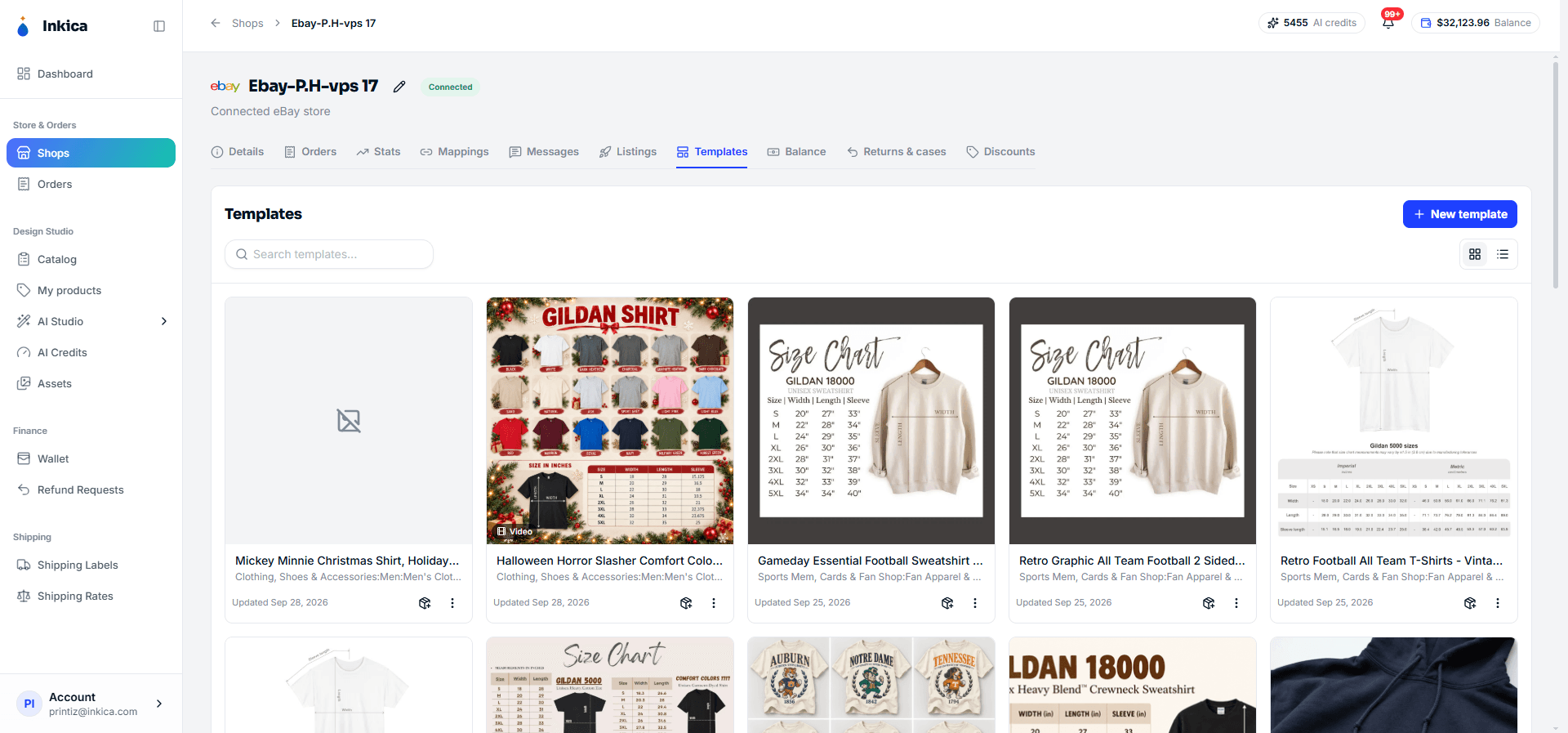
Templates
Save a listing template (category, variations, item specifics, images/video, suggested price…) to reuse many times — handy when you have many similar products, so you don’t have to re-enter everything from scratch each time. From a saved template you can: Create listing (opens the New listing form, pre-filled from the template), Edit, Duplicate, or Delete (deleting a template doesn’t affect any listings already created from it).
Balance
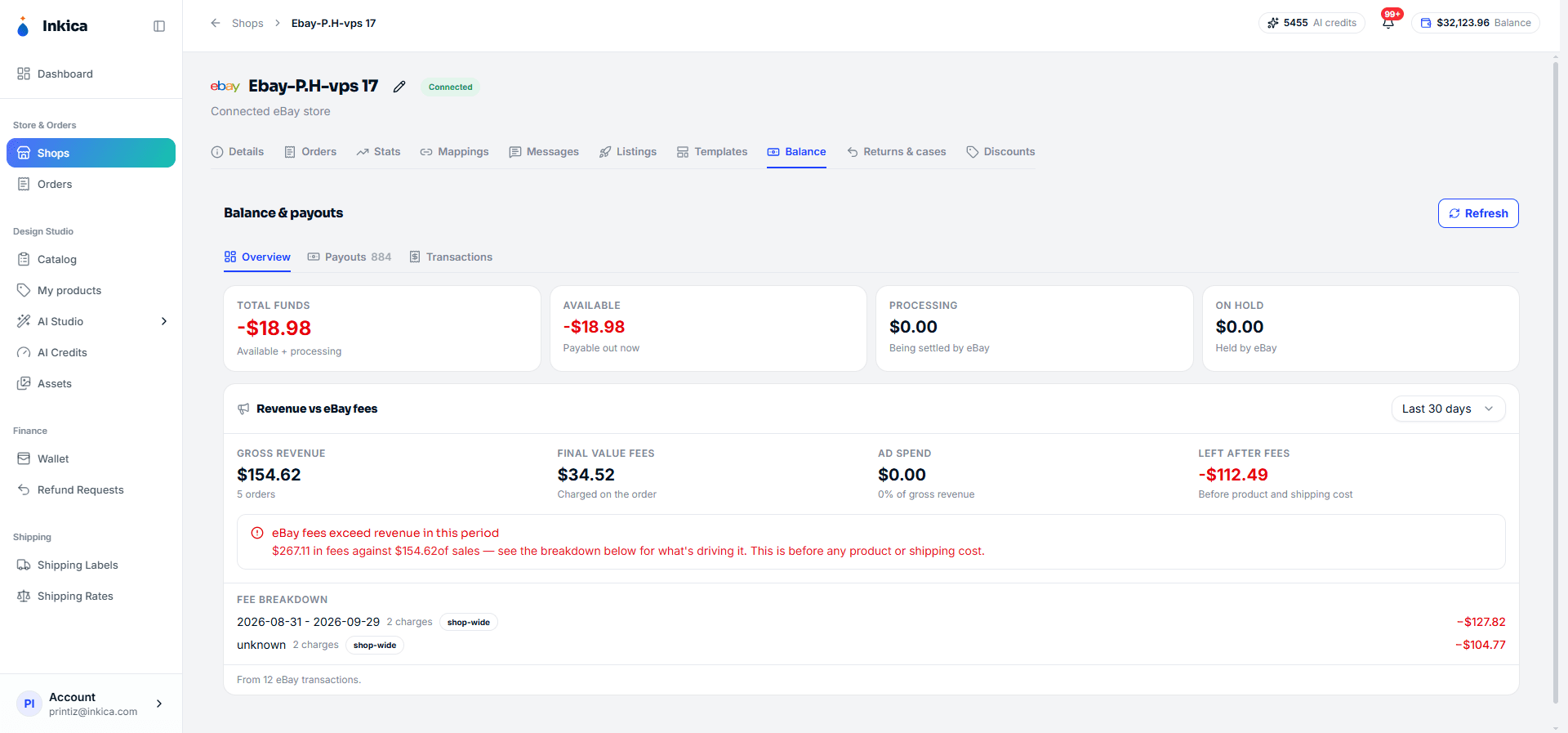
See the money eBay is holding for you or has paid out, in 3 parts:
- Overview — total funds, available, processing, on hold, plus a summary table of the eBay fees charged.
- Payouts — history of the times eBay transferred money to you, with date, amount, status, and the number of related orders.
- Transactions — details of each transaction.
Returns & cases
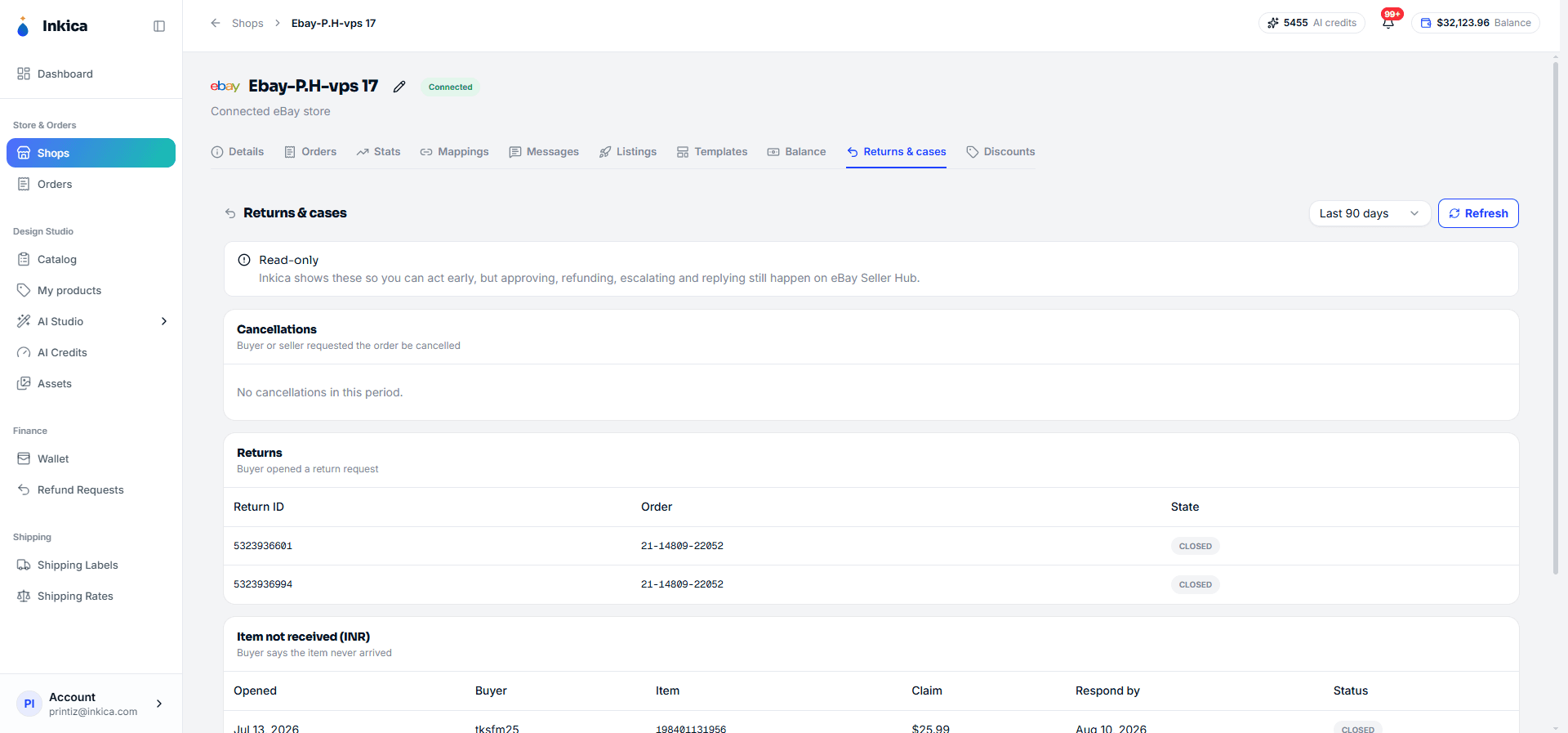
Look up post-sale situations: canceled orders, disputes (cases), item not received (INR), return requests — choose a time range (30/90/180 days) to view.
⚠️ This is a table for you to keep track and know in advance, not a place to handle them. Approving/declining/refunding/replying to buyers for these cases still has to be done on eBay Seller Hub.
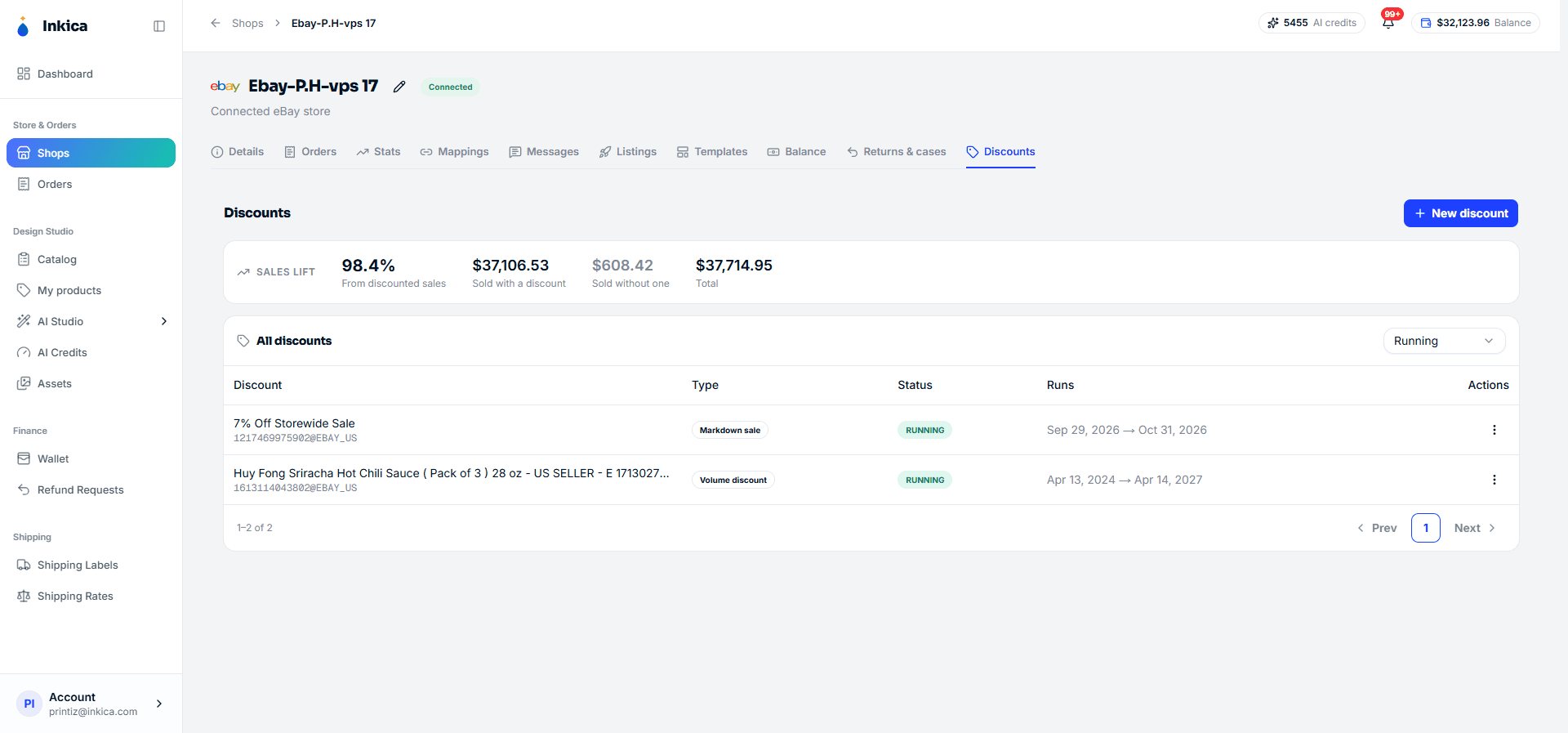
Discounts
Create (free) discount programs for your listings to attract buyers — very different from the paid ads on the Listings tab. There’s a “Sales lift” summary card (extra sales thanks to the discount compared with no discount), and a table listing your discounts (name, type, status, run dates).
From a discount you can: Edit, Duplicate, Pause/Resume (for the Markdown sale type specifically, eBay doesn’t allow pausing — you can only change the end date or delete it), Delete (removed from eBay immediately, can’t be undone).