4. Fast Shipping (Priority / Express)
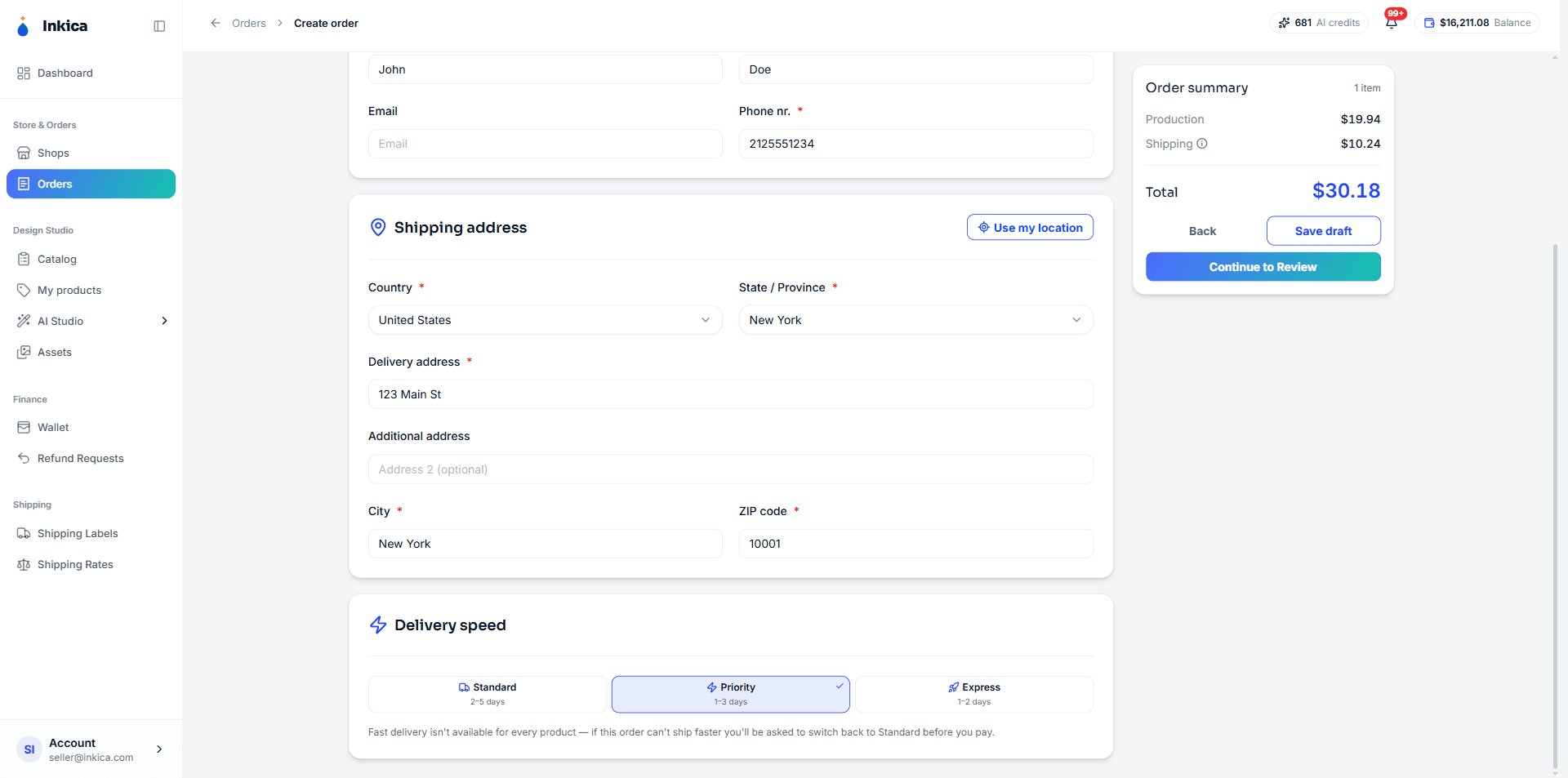
For orders delivered to the US, you can choose a faster delivery speed than the default when you create an order or before you send it out.
3 speed levels
| Level | Delivery time | Shipping fee |
|---|---|---|
| Standard (default) | 2–5 days | Standard price |
| Priority | 1–3 days | Higher than Standard |
| Express | 1–2 days | Highest |
The shipping fee for each level is a fixed price per product type (shirt, hoodie, mug…) — it doesn’t depend on size, weight or the destination state: one price for the first item, another for each additional item. See the full price table under Shipping Rates, and switch between the Standard, Priority and Express tabs to compare. Some product types also have a Label fee column — a flat fee charged once for the whole order. An order with several product types still pays only 1 shipping fee, taken from whichever type gives the highest amount.
Where to choose the speed
- Manual orders (Create Order): in the Shipping step, the Delivery speed card sits right below the shipping address. Whichever level you choose, the shipping fee in the Order summary on the right updates immediately.
- Marketplace orders: in the Fulfill order panel (or Resubmit order if the order was rejected) there’s a Delivery speed section above the costs. You can only change it while the order is still waiting to be processed or has been rejected.
- Excel import: the
shipping_speedcolumn — typestandard,priorityorexpress(leave blank = Standard). It applies to the whole order, not to each product line separately; for an order with several lines, type the same value on every line of that order, otherwise you’ll get an error. A misspelling also gives a clear error instead of silently switching to Standard. You can change the speed again in the Edit order box on the preview page.
Notes
- Only for orders delivered to the US — orders to other countries don’t have this option.
- Not every product can ship fast — it depends on the factory that will make the order. For a manual order, the system tells you right at the Shipping step: the cost estimate shows Shipping estimate failed with the message ”…” can’t ship with Priority delivery — choose Standard for this order and a Switch to Standard shipping button — click it to go back to Standard, or remove that product from the order. If you still reach the Pay step, the system checks again (Fast shipping isn’t available for …) and you haven’t been charged.
- Marketplace orders and Excel import: the system picks the factory after the order has been created, but for a Priority/Express order it only chooses among factories that can ship fast (currently Printiz and LENFUL) — it never assigns the order to a factory that doesn’t support fast shipping. If no factory fits, the order waits for the operations team instead of going to the wrong factory; contact support if an order sits waiting for a long time.
- Orders where you arrange the shipping label yourself (for example TikTok handling the shipping) can’t use fast shipping — fast shipping only applies when Inkica buys the label.
- Changing the speed on an order that’s already been paid (for example an order that was rejected and then resubmitted) only charges or refunds the exact difference in shipping fee — see Process orders.
Last updated on