5. Wallet & Top-up
All costs on Inkica (order creation, printing, shipping…) are deducted directly from your wallet — top up in advance and spend as you go, with no need to save a card or pay for each order separately.
Check your balance
Your wallet balance is always shown in the top right corner of the screen. Open Wallet for details, including the Balance history chart (your daily balance history — choose the last 7/30/90 days).
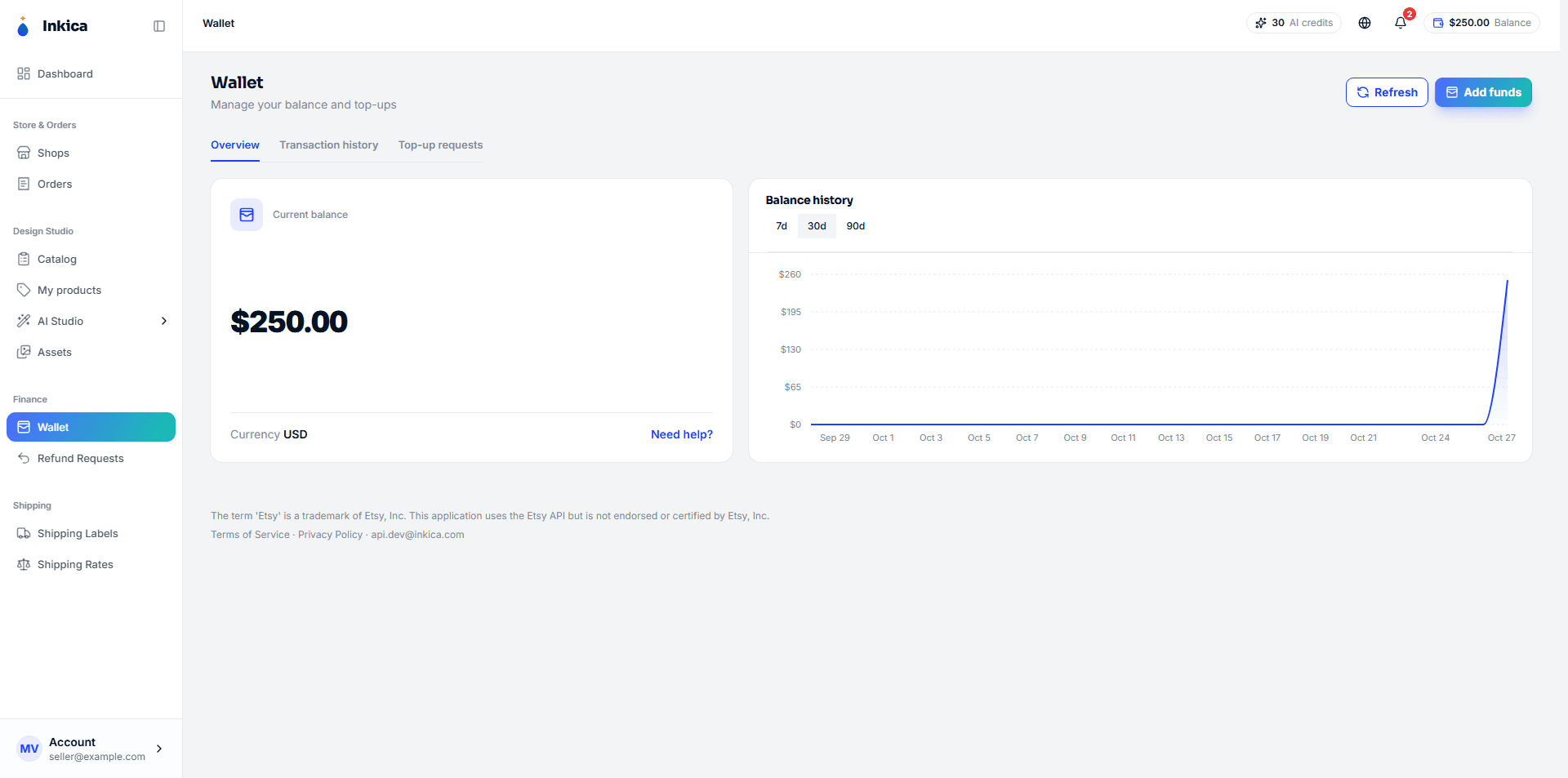
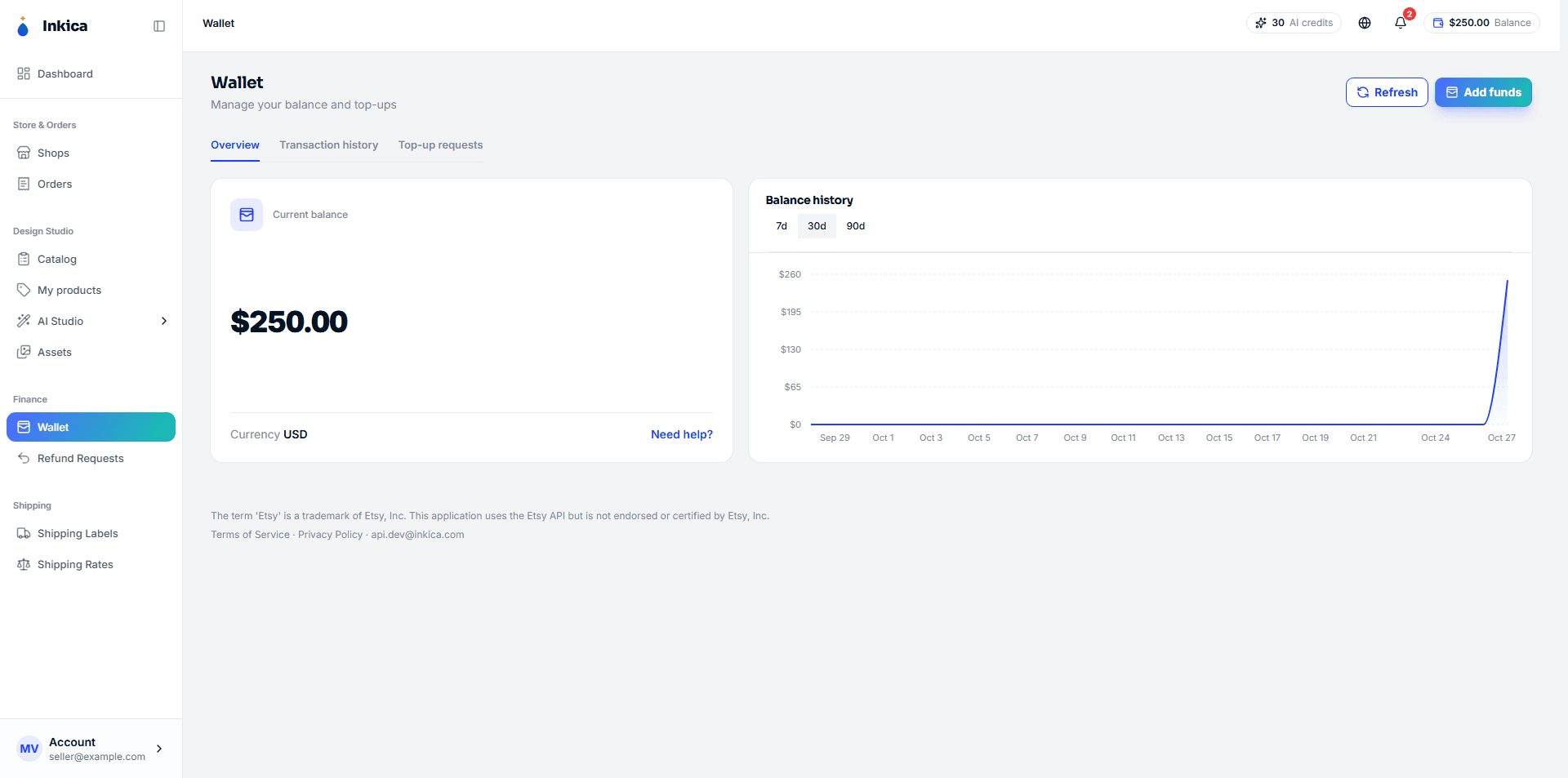
Add funds
Click Add funds on the Wallet page — you can choose one of 2 methods:
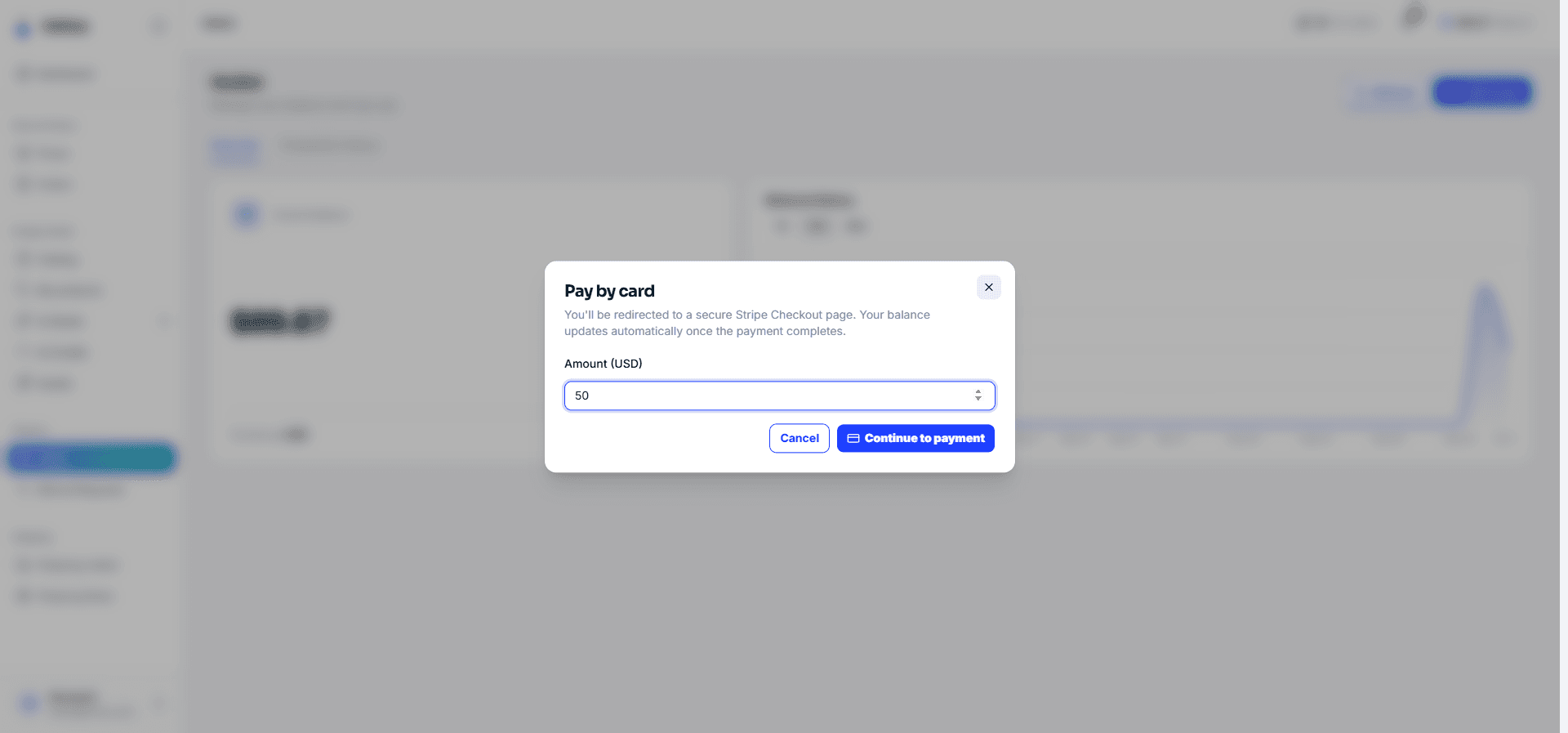
Pay by card — top up instantly by card
The fastest way: enter the amount → Continue to payment → you’re redirected to the Stripe payment page (Visa/Mastercard/Amex accepted) → once you’ve paid, Stripe sends you back to Inkica and your wallet is credited automatically, with no one needing to approve it. Minimum $0.50 per top-up.
Right after you return, the system only shows “processing” — the money may reach your wallet a few seconds after you’re back on the page, because it has to wait for Stripe to confirm. If you click cancel partway through on Stripe, the system tells you that you were not charged.
Bank transfer — pay by bank transfer, approved manually by the operations team
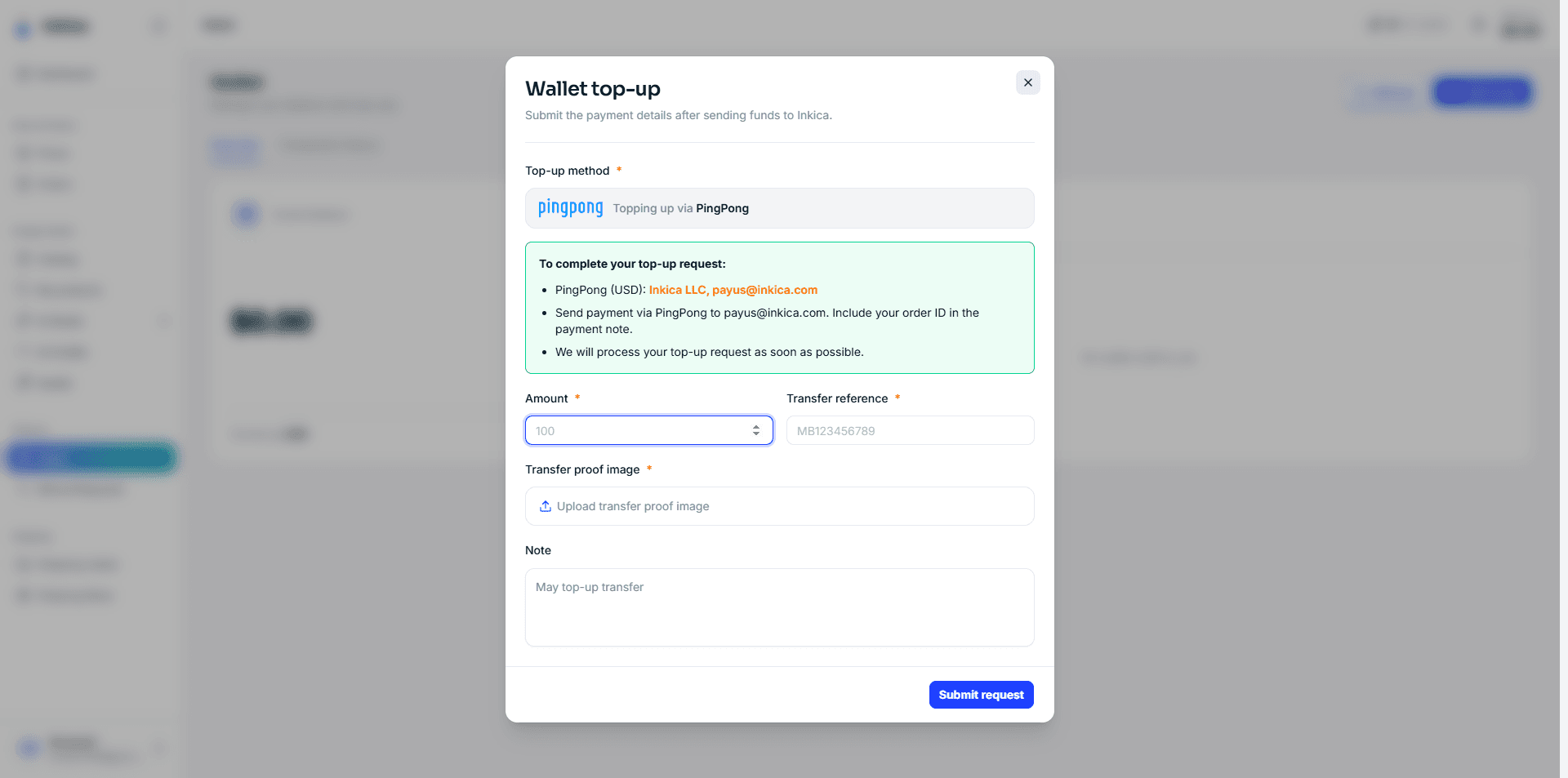
- Choose the receiving channel (if more than 1 channel is enabled — the system shows that channel’s transfer details right away: bank/account name, or an email for PingPong/Wise-type channels).
- Transfer exactly the amount you want to add, using the details shown.
- In the form, fill in:
- The amount you transferred
- The transfer date (you can’t pick a date in the future)
- A screenshot confirming the transfer (required, up to 50MB)
- Click Submit request.
After you submit, the request is pending approval. The operations team checks and approves it as soon as possible — the money reaches your wallet the moment it’s approved. Whether it is approved or rejected, you get a notification; a rejected request always comes with a reason (for example, the transfer is not on our statement, or the amount is wrong) so you can check it. See all your requests in the Top-up requests tab.
Transaction history
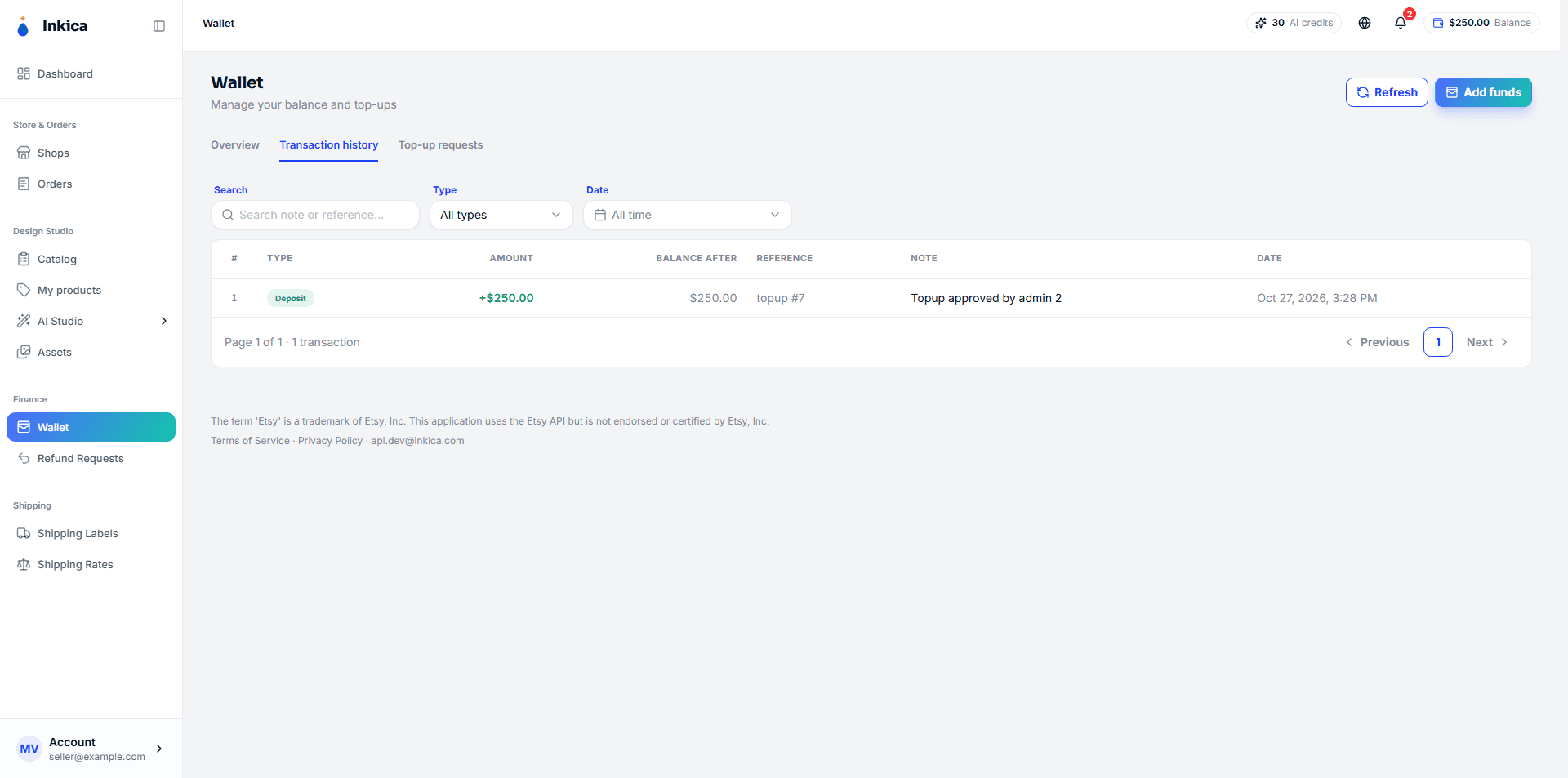
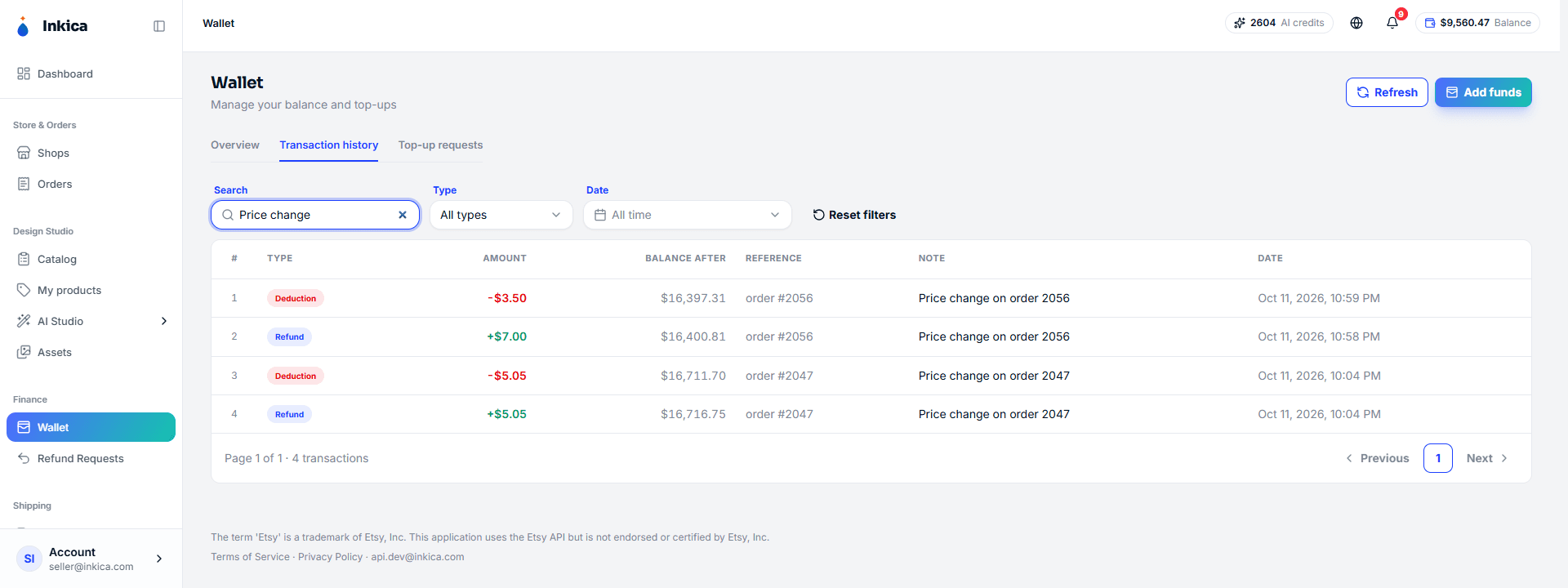
On the Wallet page, switch to the Transaction history tab to see your full history: money added (by card or bank transfer), money deducted when you create orders, money refunded when an order is canceled/refunded, and adjustments when a paid order is edited in a way that changes its price (labeled “Price change on order …” — only the difference is charged or refunded, see Process orders). Type in the Search box (for example an order ID, or “Price change”) to filter quickly. Click a row to see the transaction details (with the transfer proof for bank transfer top-ups).
Track your top-up requests
The Top-up requests tab on the Wallet page lists every bank transfer top-up you have submitted, newest first (card top-ups are credited instantly, so they don’t appear here). Each request shows the amount, the receiving method, the transfer date, when you submitted it and its status:
- Pending review — waiting for the operations team to check it.
- Approved — approved and added to your wallet (the top-up also appears in Transaction history).
- Rejected — declined; nothing was added to your wallet.
The Note from Inkica column shows the operations team’s note when they approve, or the reason when they reject. Click a request to see all its details, including the transfer proof you uploaded. Use Search (a request number such as #16, or words from the note) and the Status and Date filters to find one quickly.
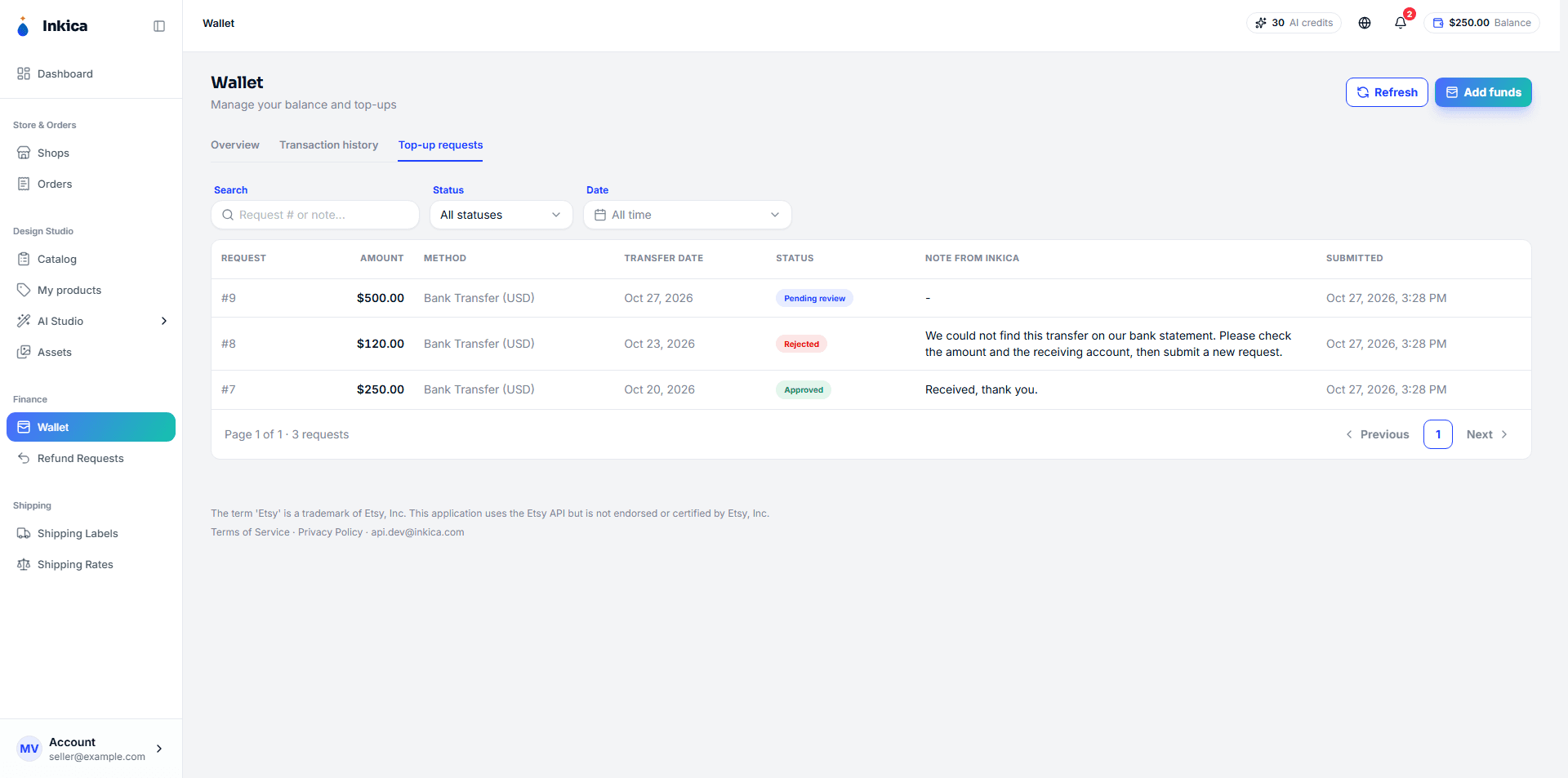
If a request was rejected: read the reason, check the transfer again (amount, date, receiving account), then submit a new request through Add funds if needed. For more help, click Need help? on the Wallet page.
◀ Fast shipping · Contents · Next: Buy your own shipping labels ▶