14. Dashboard & Analytics
The Dashboard is your home page after you sign in: it shows what needs doing today and how the last 30 days went. For more detail (any date range, comparison with the previous period, per shop and per product, export to a file) open Analytics, right below Dashboard in the sidebar.
Dashboard
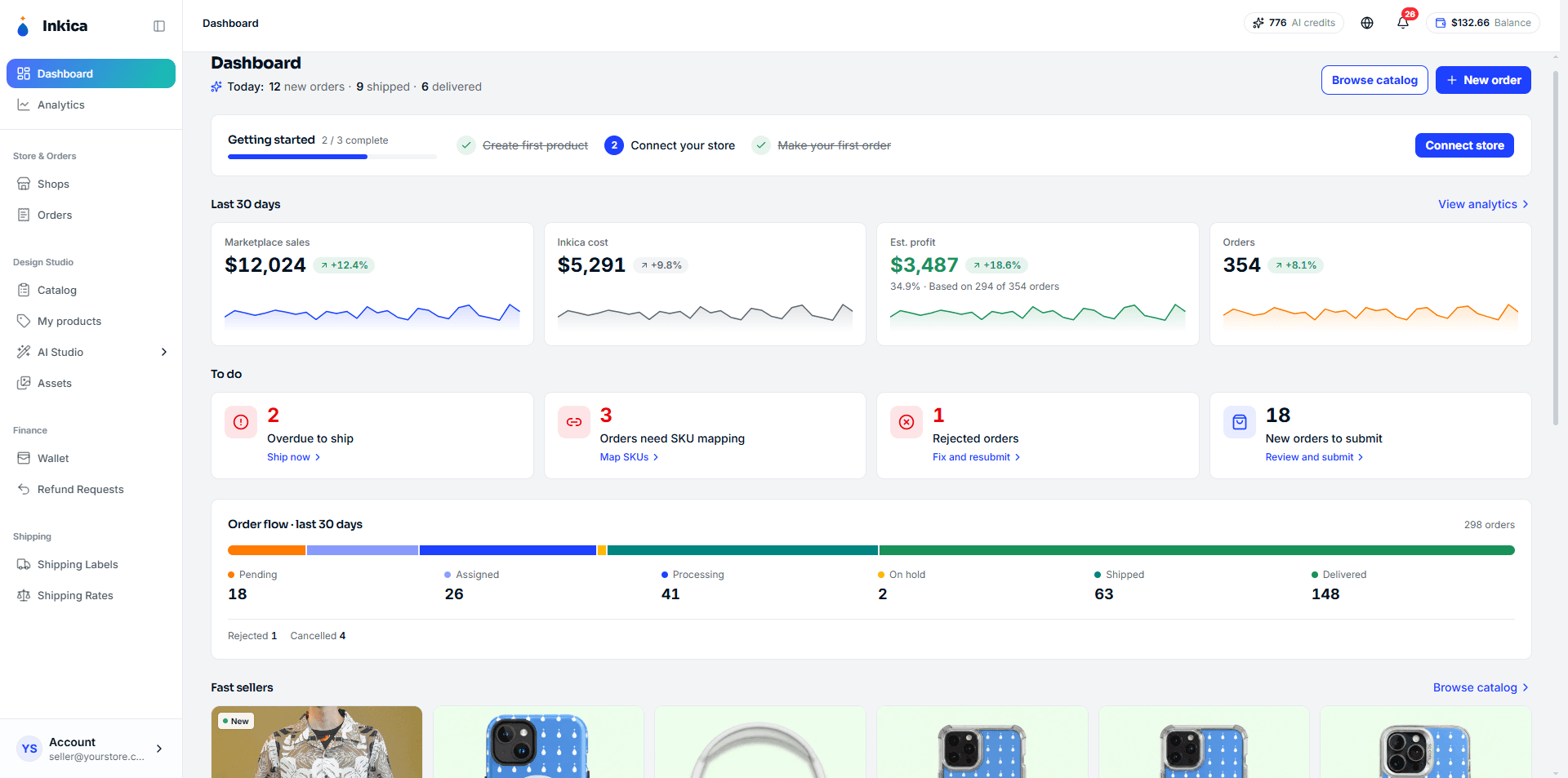
For new accounts
Until you finish the first 3 steps, the Dashboard shows a Getting started bar with your progress (x / 3 complete), the 3 steps, and a button for the next one. Finished steps get a ✓.
- Create first product → see Create products to sell
- Connect your store → see Connect your shop
- Make your first order → see Process orders
Once all 3 are done, the bar disappears.
What’s on the Dashboard
-
Top of the page: the Today line shows how many new orders came in today and how many orders changed status (only when something happened today). On the right are Browse catalog and New order.
-
Last 30 days: the 4 headline numbers for the last 30 days: Marketplace sales, Inkica cost, Est. profit and Orders. Each shows the % change against the 30 days before and a small daily chart. Click View analytics for the details. How each number is worked out: see How the numbers are calculated.
-
To do: only what needs you right now, most urgent first:
- Overdue to ship: orders past their deadline to hand over to the carrier.
- Orders need SKU mapping: orders with an item not yet matched to an Inkica product.
- Rejected orders: orders that were rejected and need fixing and resubmitting.
- Shops to reconnect: shops that lost their connection.
- Confirm TikTok shipping: TikTok orders waiting for you to confirm that TikTok handles shipping.
- Due to ship today: orders that must be handed to the carrier today.
- New orders to submit: new marketplace orders not yet sent to Inkica.
- Wallet balance is low: your wallet is running low (under $10).
Click a tile to open Orders already filtered to those orders. When there is nothing left, you see All caught up.
-
Order flow · last 30 days: where the orders created in the last 30 days are now, from Pending to Delivered. Click a status to see its orders. Rejected and Cancelled counts are on the line below.
-
Fast sellers: popular Catalog items to inspire new products (not your own products).
Analytics
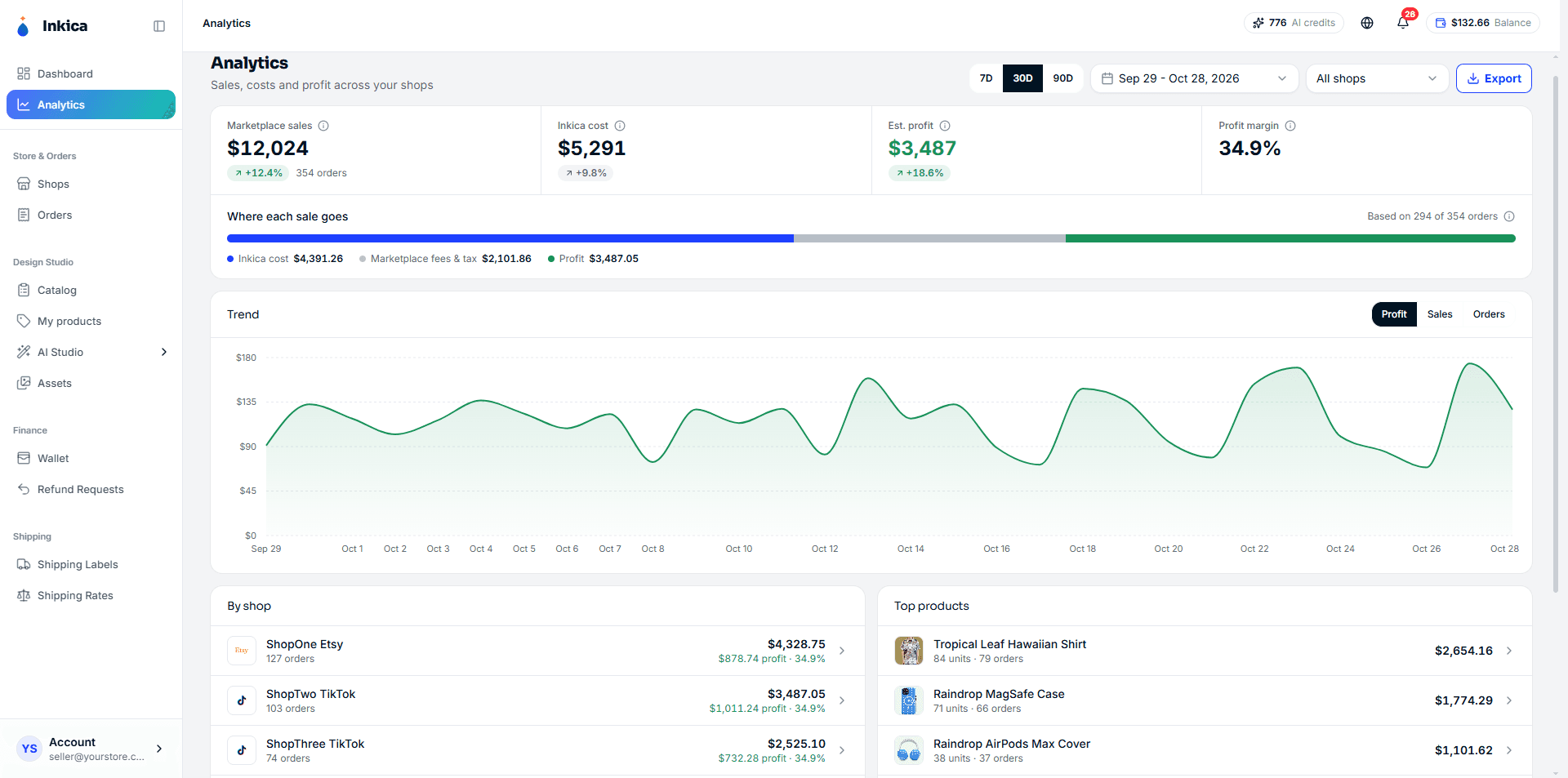
- Filters at the top: quick 7D / 30D / 90D or any date range; All shops or a single shop; Export downloads an
.xlsxfile with 4 sheets (Summary, Daily, Shops, Products) for the current filters. - The 4 headline numbers: Marketplace sales, Inkica cost, Est. profit, Profit margin, each with the % change against the previous period of the same length. Click the ⓘ next to a number for an explanation.
- Where each sale goes: a bar that splits the sales of the orders with a profit figure into Inkica cost, Marketplace fees & tax (what the marketplace keeps), and Profit.
- Trend: a daily chart; switch between Profit, Sales and Orders.
- By shop: sales and profit for each shop. Click to open the shop.
- Top products: your 10 best-selling products with units and orders. Click to open the product.
The Stats tab on each shop’s page (Shops → pick a shop) shows the same numbers for that shop only, plus charts of orders by status and production by status.
How the numbers are calculated
| Number | What it means |
|---|---|
| Marketplace sales | What buyers paid on the marketplace (including shipping and tax), USD orders only. |
| Inkica cost | What Inkica charged your wallet for these orders (product, printing, shipping), after any refunds. |
| Est. profit | What the marketplace pays you (after its fees) minus Inkica cost. Only orders with complete data count (see below). |
| Profit margin | Est. profit divided by the sales of those same orders. |
An order’s date is the date it was created or synced into Inkica.
Why profit covers only some orders
The Based on X of Y orders line tells you how many orders the profit is calculated on. To work out profit, Inkica needs to know what the marketplace pays you for each order:
- TikTok Shop: available for every order.
- eBay: available for every order, but before advertising fees (Promoted Listings), so profit on promoted orders can be higher than it really is.
- Etsy: available only after you open the order’s payout on the order page.
- Shopify, Amazon, manual or XLSX-imported orders: not available yet, so they are not counted.
These orders are also left out of profit: orders not yet sent to Inkica (nothing charged yet), fully refunded orders, and orders not in USD.