11. TikTok Shop-Specific Features
◀ Contents · Already connected your TikTok shop?
Go to Shops → choose your TikTok shop to see the tabs below. The first 4 tabs (Details, Orders, Stats, Mappings) are the same on every marketplace. The tabs specific to TikTok Shop: Listings, Templates, Promotions, Returns & cancellations, Performance, Hold balance, Settings.
Listings
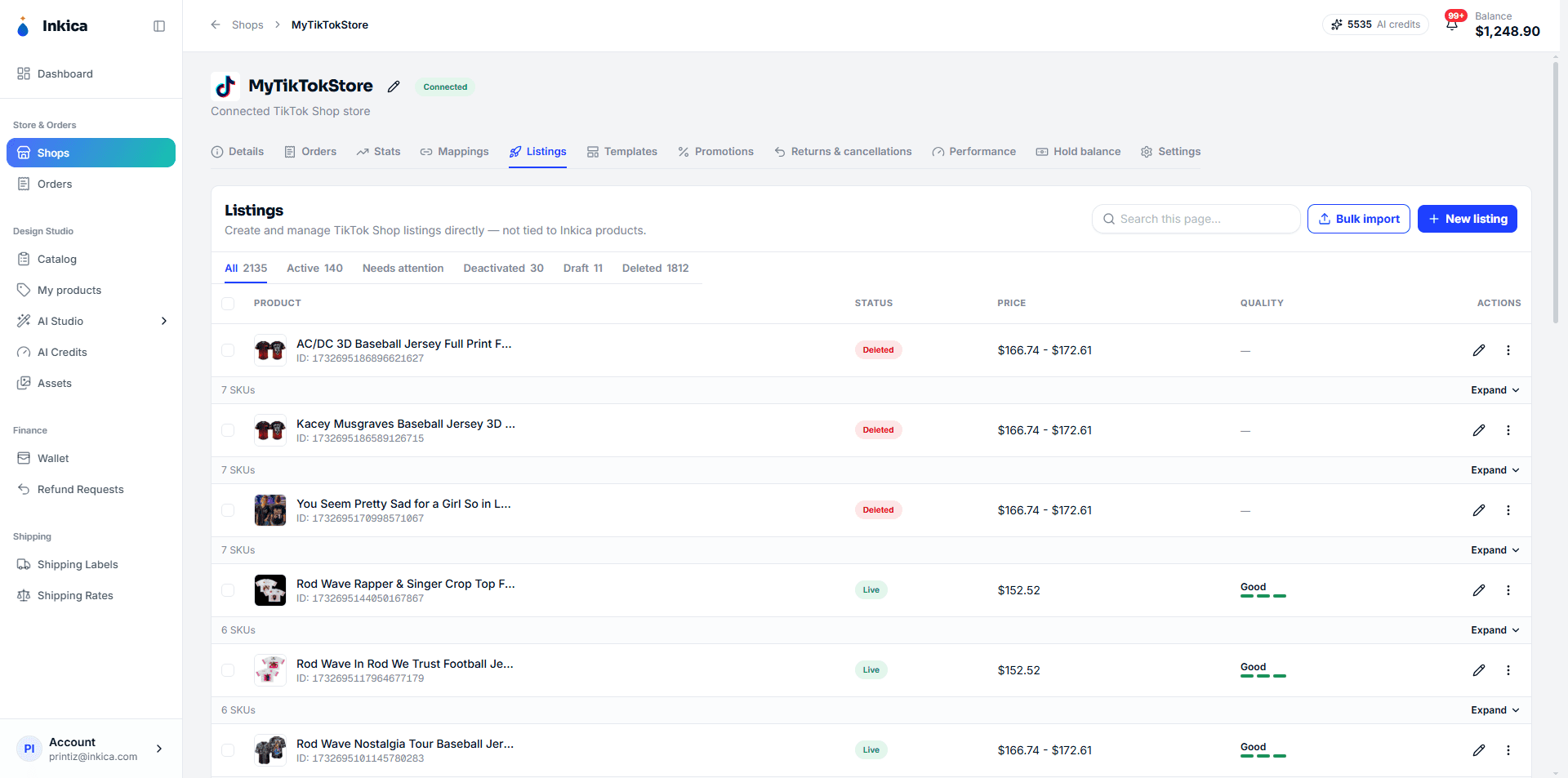
Manage the products you sell on TikTok Shop — create new ones, edit them, create in bulk with a CSV file, and update the price/SKU/stock of each variant.
- Find a listing: the search box matches title, product ID or seller SKU across every listing in the open tab, not just the page you are on. On a shop with many listings, the first search can take a few seconds.
- Suspended by TikTok tab: listings TikTok has turned off. Different from the Deactivated tab, which holds listings you turned off yourself.
💡 The fastest way to list a new product on TikTok Shop: go to My Products, choose a product you’ve created → List to marketplaces → choose TikTok Shop.
Templates
Save a listing template to reuse many times for similar products.
Promotions
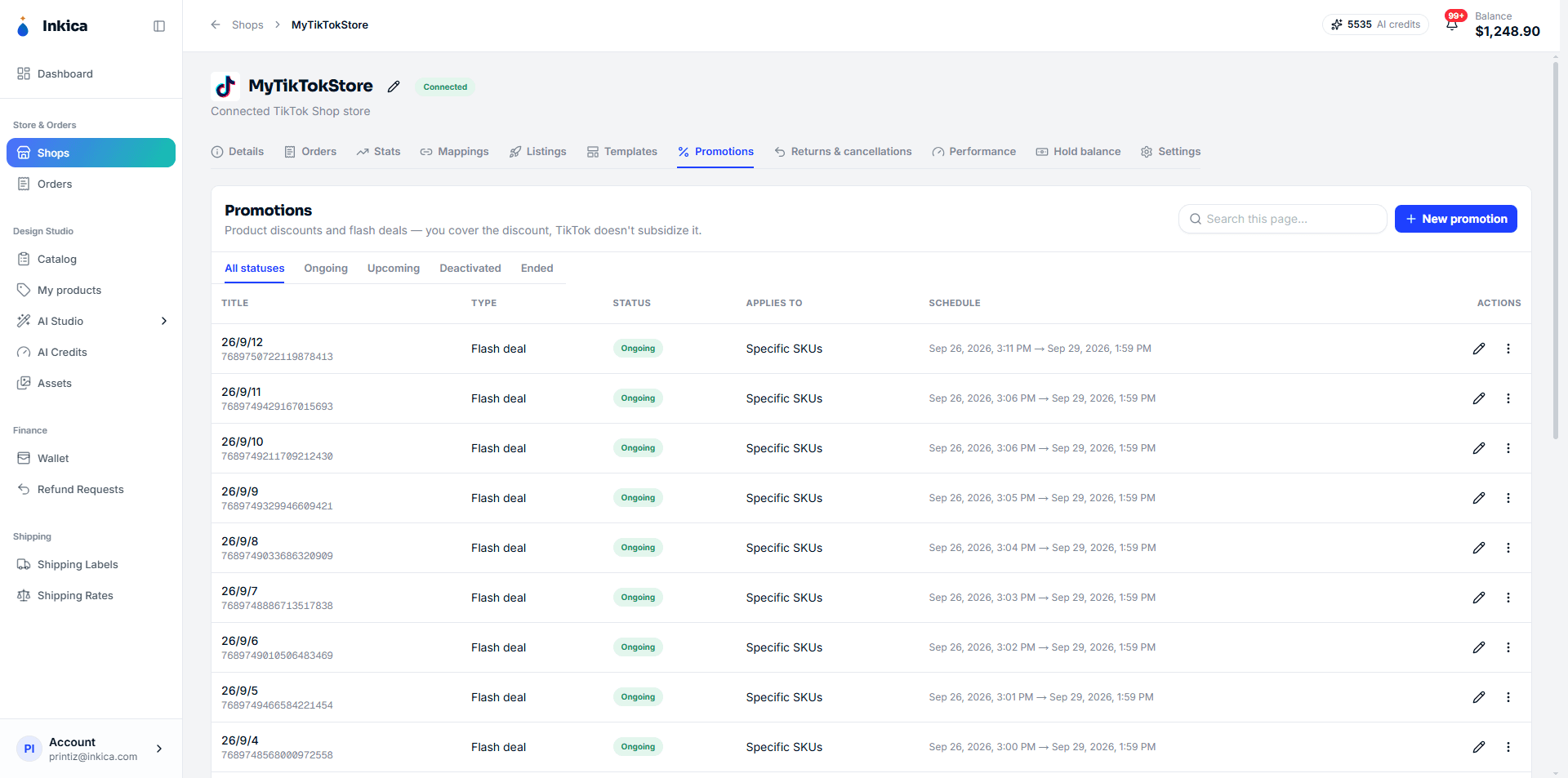
Create promotions/discounts for products on TikTok Shop. There are 5 tools:
- Product discount — a percentage or fixed-price discount, on a schedule you set.
- Flash deal — a discount for a short period of time on the products you choose.
- Free shipping — free or reduced shipping when an order reaches a minimum amount.
- Buy more, save more — tiered discounts: the more items/the larger the order, the bigger the discount.
- Buy X, get Y — a free or discounted second item after the buyer meets the condition.
Returns & cancellations
2 separate sections, each with Approve/Reject buttons for every request:
- Cancellations — the buyer or you cancel an order (only orders that haven’t shipped can be canceled). Filter by status: Pending, Success, Cancelled, Complete.
- Returns/Refunds — return/refund requests. Filter by status: Pending, Awaiting ship (waiting for the buyer to send the item back), Item shipped, Approved, Refunded, Rejected.
Rejecting (Reject) any request requires choosing one of the preset reasons provided by TikTok (it changes with each request, and you can’t type your own).
💡 Batch returns — a separate sub-tab for when one buyer returns several SKUs in the same package, so you can approve them together in one go instead of handling each row.
Performance
There are 4 sub-tabs:
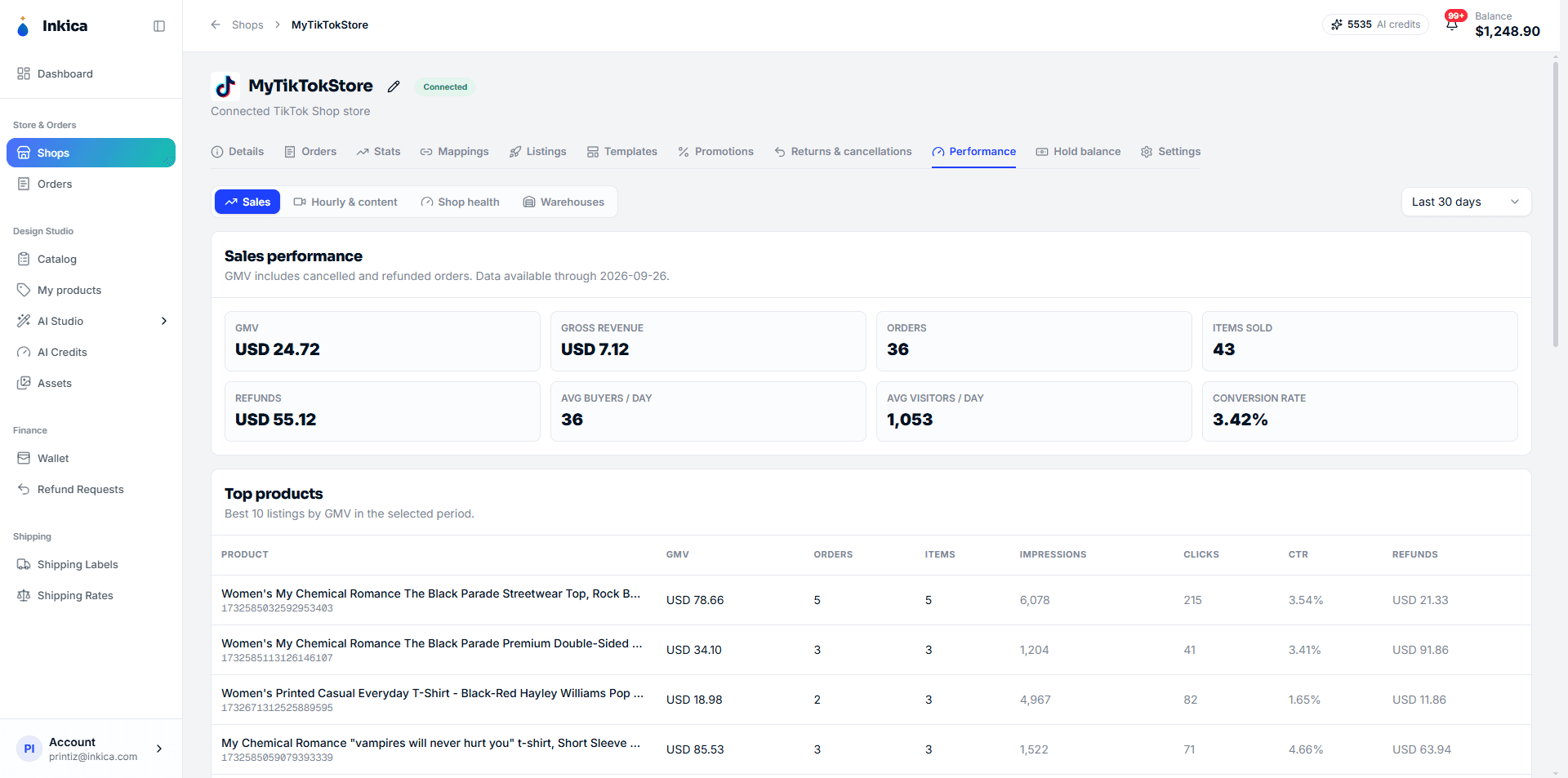
- Sales — GMV over a time range you can choose (7/30/90 days), and the best-selling products by GMV. Note: GMV includes canceled/refunded orders; it is not the sales you actually receive.
- Hourly & content — the best-selling products/SKUs (Top SKUs), Video & LIVE performance, and sales by hour of the day (Sales by hour).
- Shop health (SPS — Shop Performance Score) — the shop health score rated by TikTok, which applies only to US-region shops. Click a metric row to see the detailed diagnosis (benchmark, trend, orders/chats causing a low score). The score history chart builds up daily from the moment Inkica started tracking — a newly connected shop has no history yet, so check back later.
- Warehouses — the list of your shop’s warehouses on TikTok (view only, can’t be edited here).
Hold balance
Keep track of the money TikTok Shop is holding for your shop, in 3 sub-tabs:
- Overview — an overview of the amount on hold (an estimate, not the final figure).
- Unsettled orders — orders TikTok hasn’t settled yet.
- Statements — settled statements.
The Shops page also has a TikTok hold summary line for all your TikTok shops.
Settings
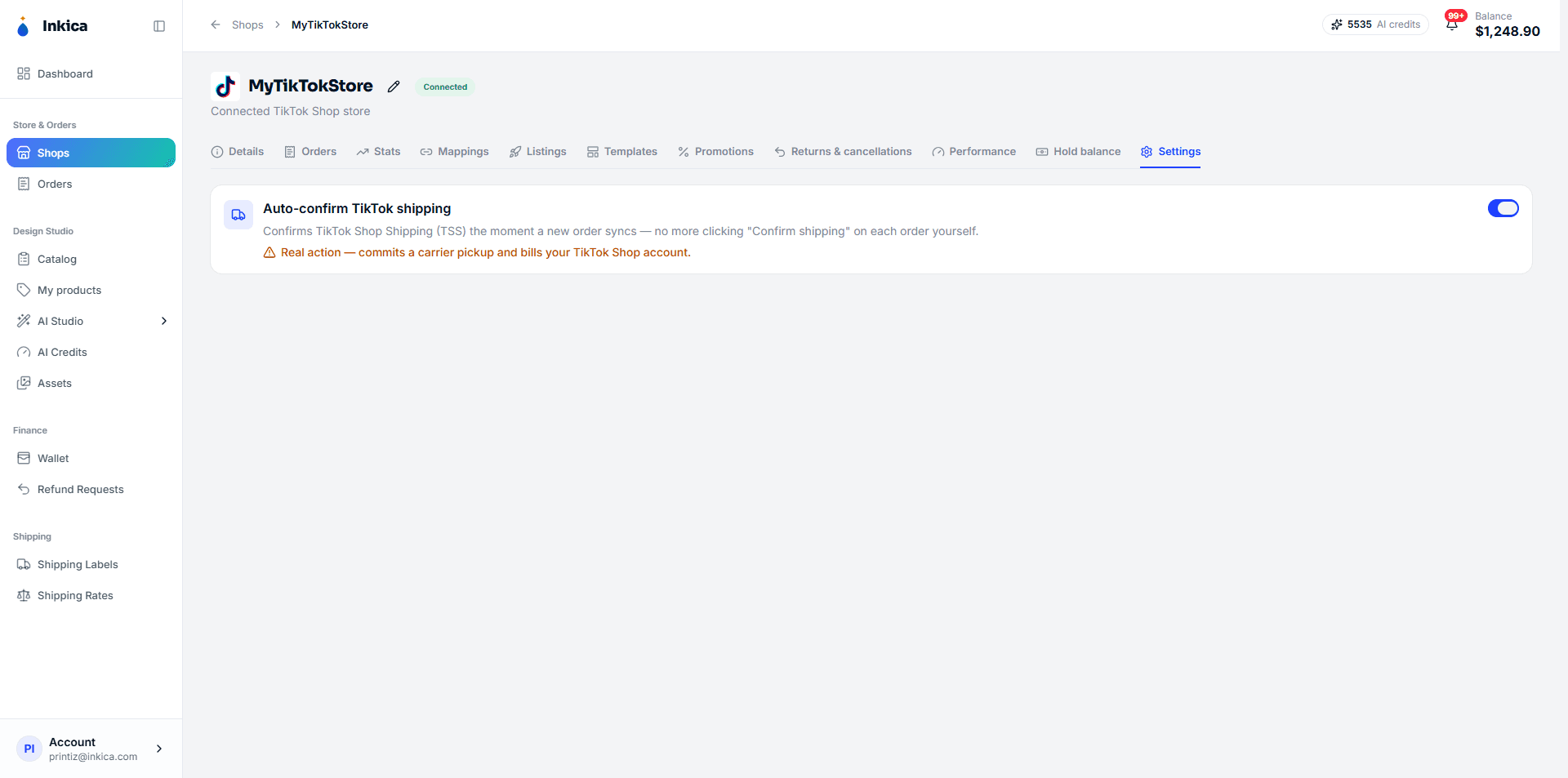
Turn Auto-confirm shipping on or off — when it’s on, for TikTok orders where TikTok handles the shipping (TSS), the system confirms shipping for you as soon as the order is ready, so you don’t have to click Confirm shipping on each order yourself (see also Process orders).