6. Buy Your Own Shipping Labels
Normally, the shipping label for an order on Inkica is bought for you by the operations team. But if you need a standalone shipping label — not tied to any order in the system (for example sending samples, sending a return, or selling on another channel) — you can buy it yourself.
How to buy a shipping label
- Go to Shipping Labels → click Buy shipping label.
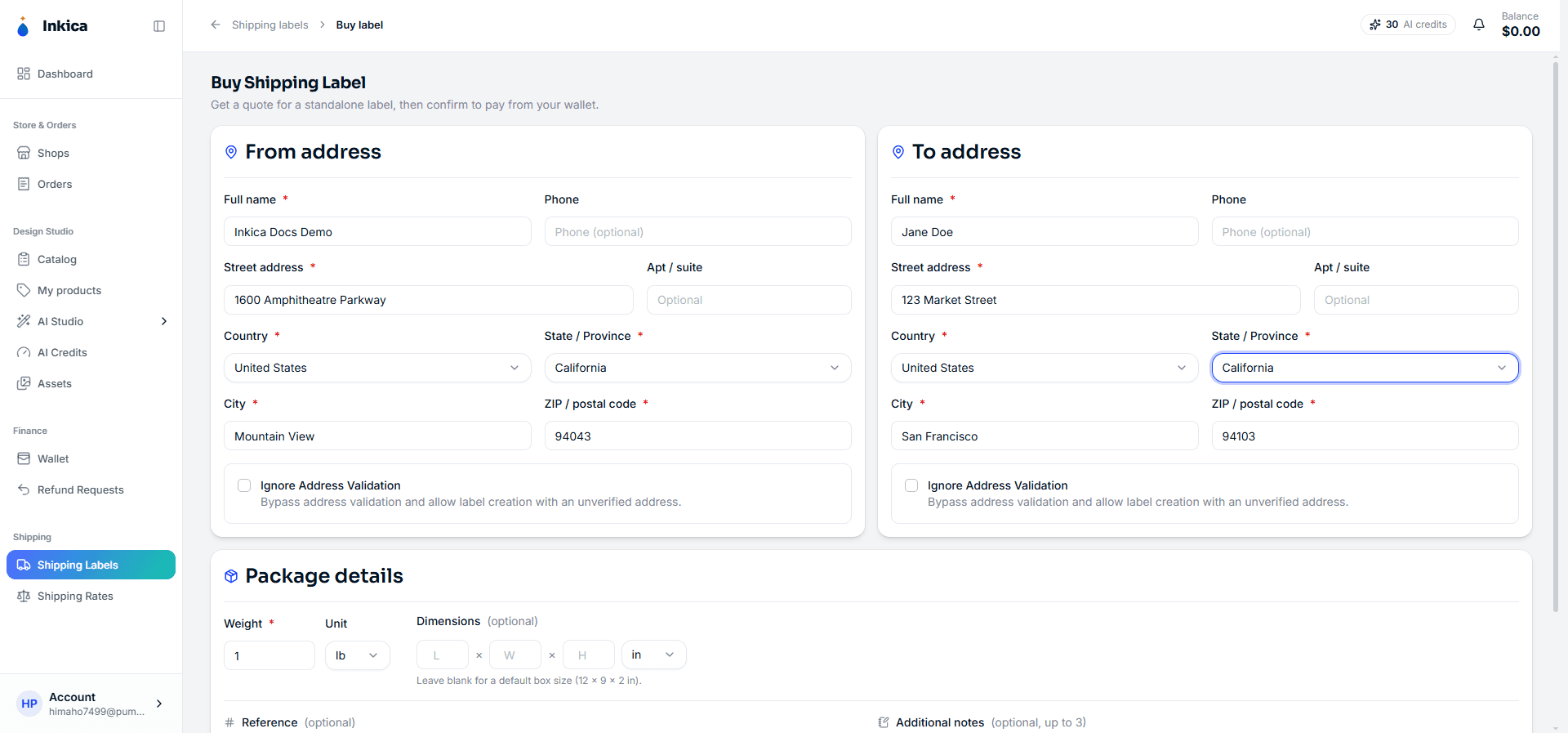
- Fill in the sender address (From) and the recipient address (To). Only U.S. addresses are supported for now. The sender address from your last purchase is filled in for you next time.
- Fill in the package details: weight, dimensions (length/width/height — optional; if left blank the system uses a default package of 12×9×2 in). Optionally add a Reference (your own reference code) and a note. The Reference is only for your own lookup in Inkica — it is not printed on the label.
- Tick Nonstandard characteristics if the package is a tube/roll, a can, a wooden/metal box, or contains liquid — declare it to avoid USPS penalty fees; when you tick it, the Express option is no longer available.
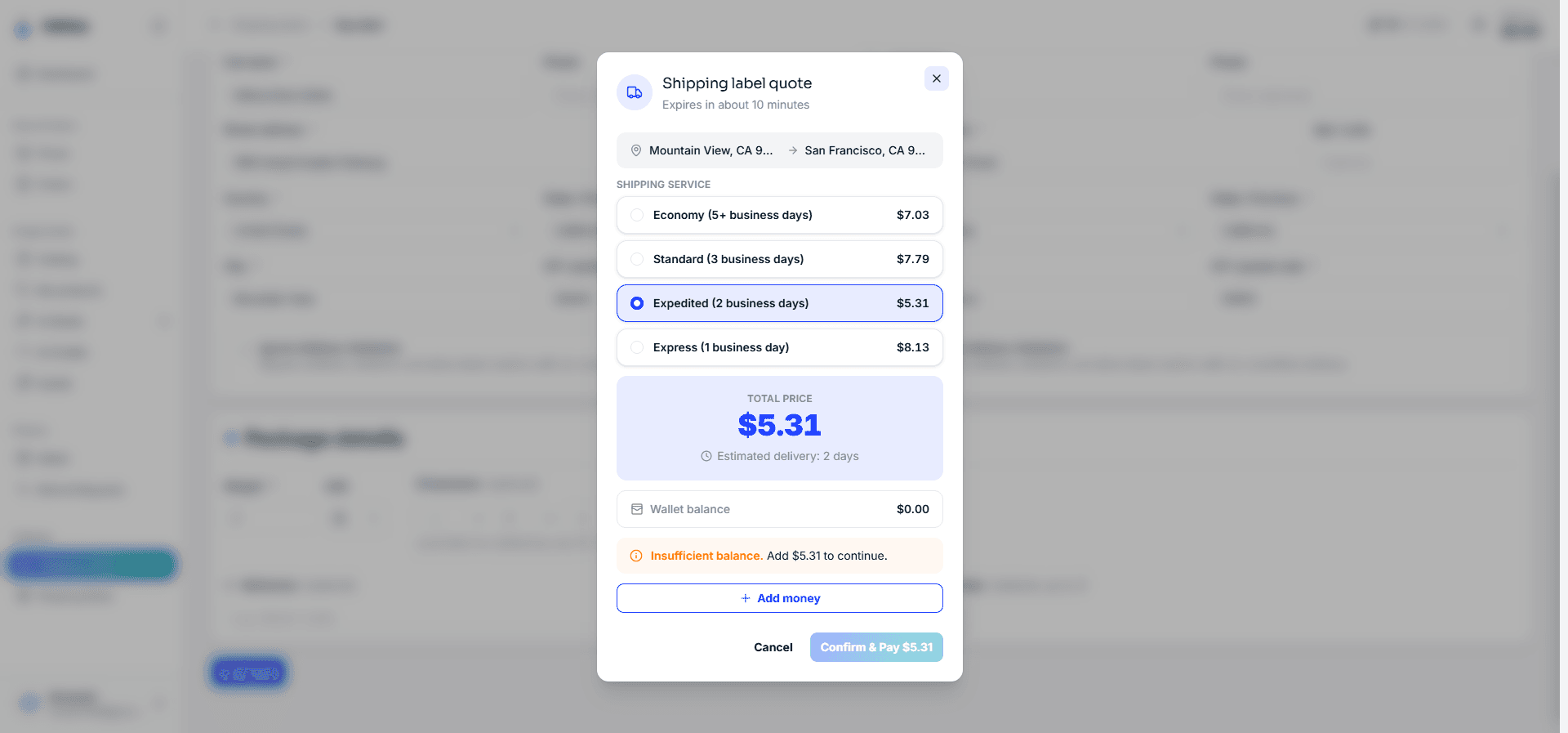
- Click Get quote — the system returns options by speed level (Economy, Standard, Expedited, Express) with the price and estimated delivery time. The actual carrier name isn’t shown. The addresses are checked at this step: if the carrier can’t verify one, that address field is marked in red with the reason — fix it, or if you are sure it is correct, tick the Ignore Address Validation box that appears there and click Get quote again.
- Choose the level that suits you and click Confirm & Pay — the money is deducted straight from your wallet (a quote is only valid for a few minutes; if you don’t have enough funds there’s an Add money button). If the carrier’s actual price comes out higher than your quote, the purchase is voided and you are not charged — just click Get quote again.
After you buy, the label (with its tracking number) appears right away in the Shipping Labels list, ready to print.
Cancelling a label: open the label in the Shipping Labels list → Cancel label, then confirm Cancel this shipping label?. If the carrier accepts the cancellation, the amount you paid is refunded to your wallet. Only labels the carrier has not scanned yet (status Created) can be cancelled; once a label moves to In transit/Delivered the cancel button is gone.
Check the price first
The price of a label you buy yourself depends on the address, weight and dimensions of the package — see the real price with Get quote above; nothing is deducted until you click Confirm & Pay.
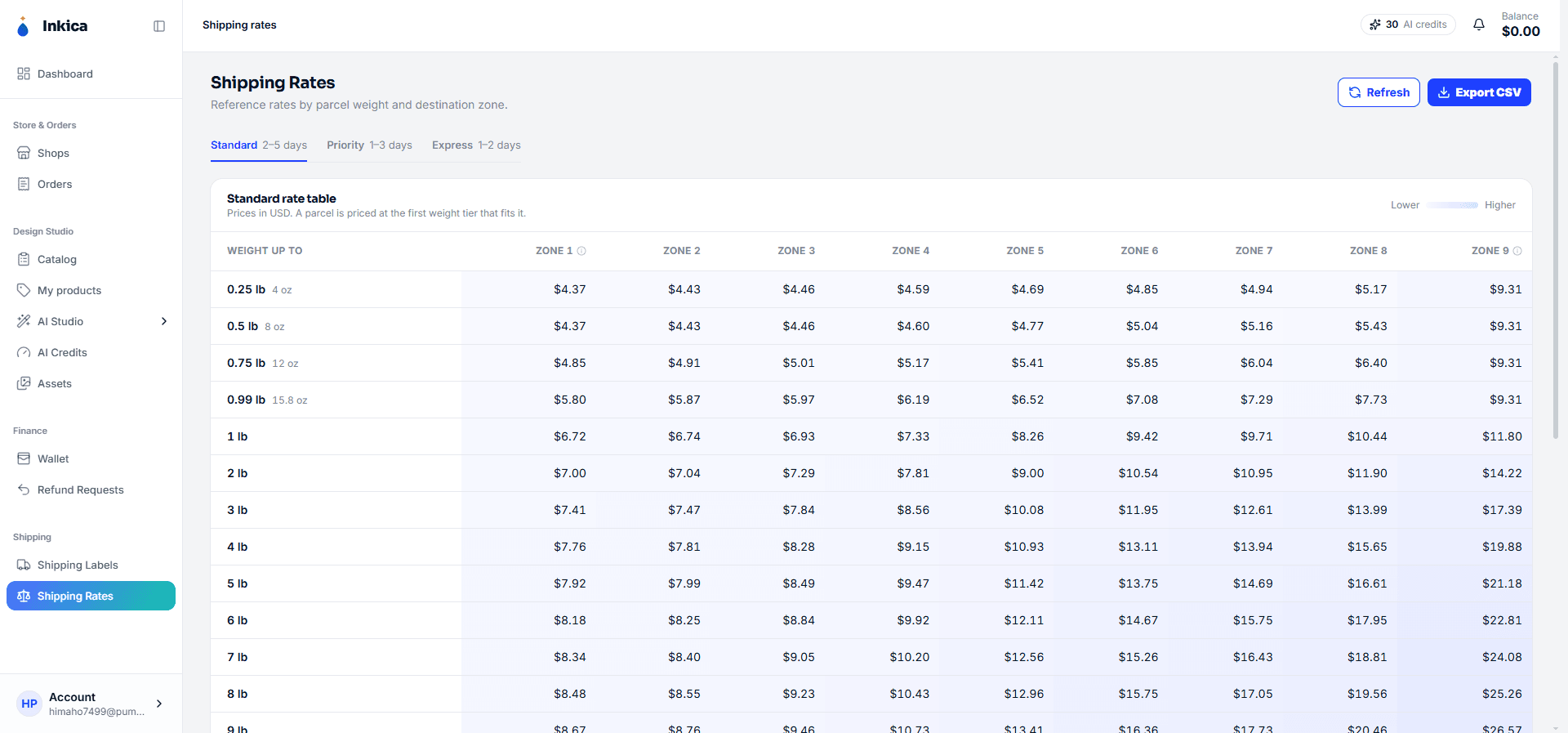
Shipping Rates is the table of shipping fees Inkica charges when Inkica ships an order for you (by product group, not the price of a label you buy yourself) — see Shipping fees for an item.